Environment Variables
Configure your Keycloak cluster's environment variables directly from the Phase Two Dash. This allows you to set custom environment variables that can be used by your Keycloak instance and any custom extensions you may have deployed.
Add and Remove Environment Variables
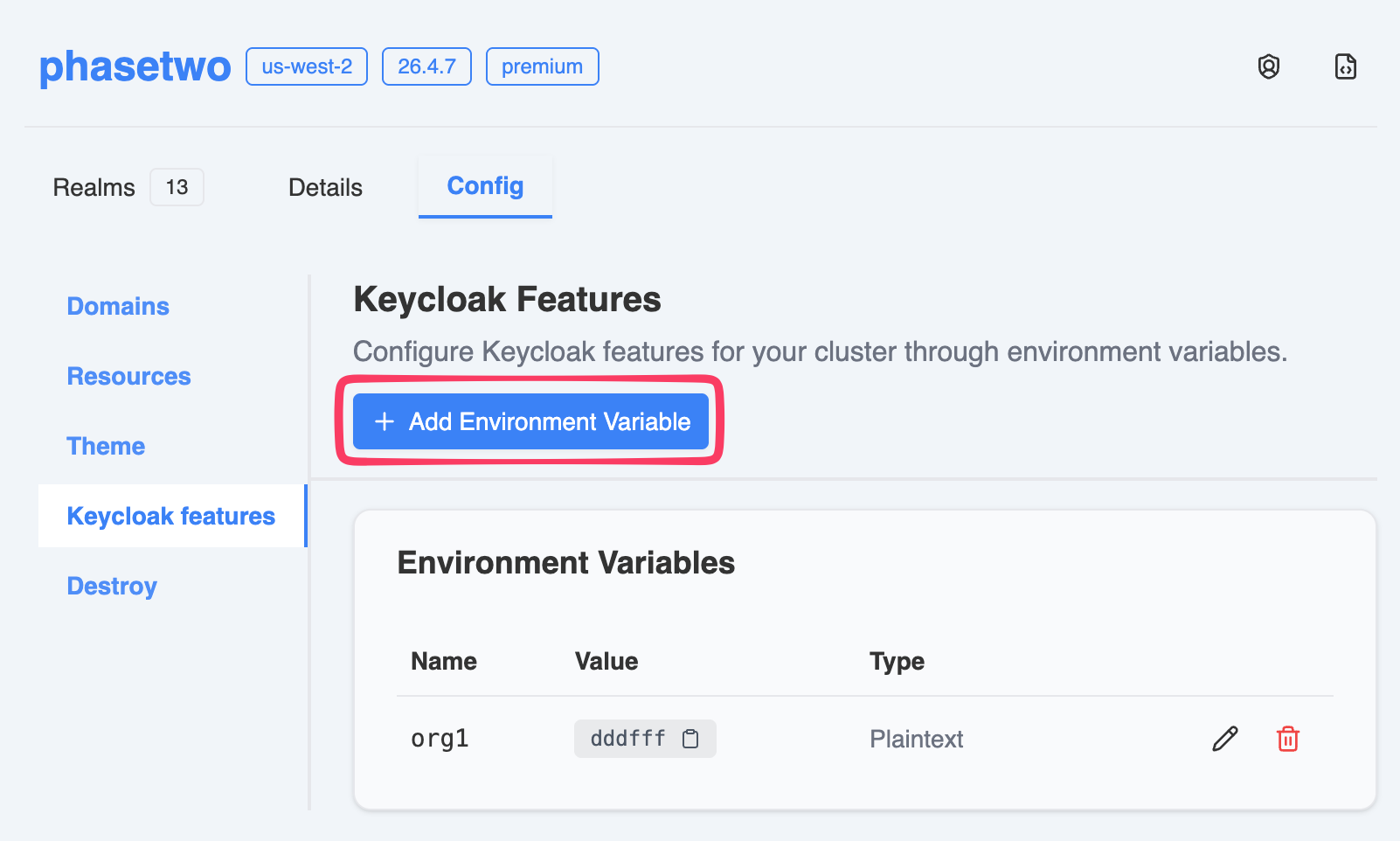
Go to your cluster's page > Config tab > Keycloak features.
Add a New Environment Variable
- Click Add Environment Variable to add a new variable.
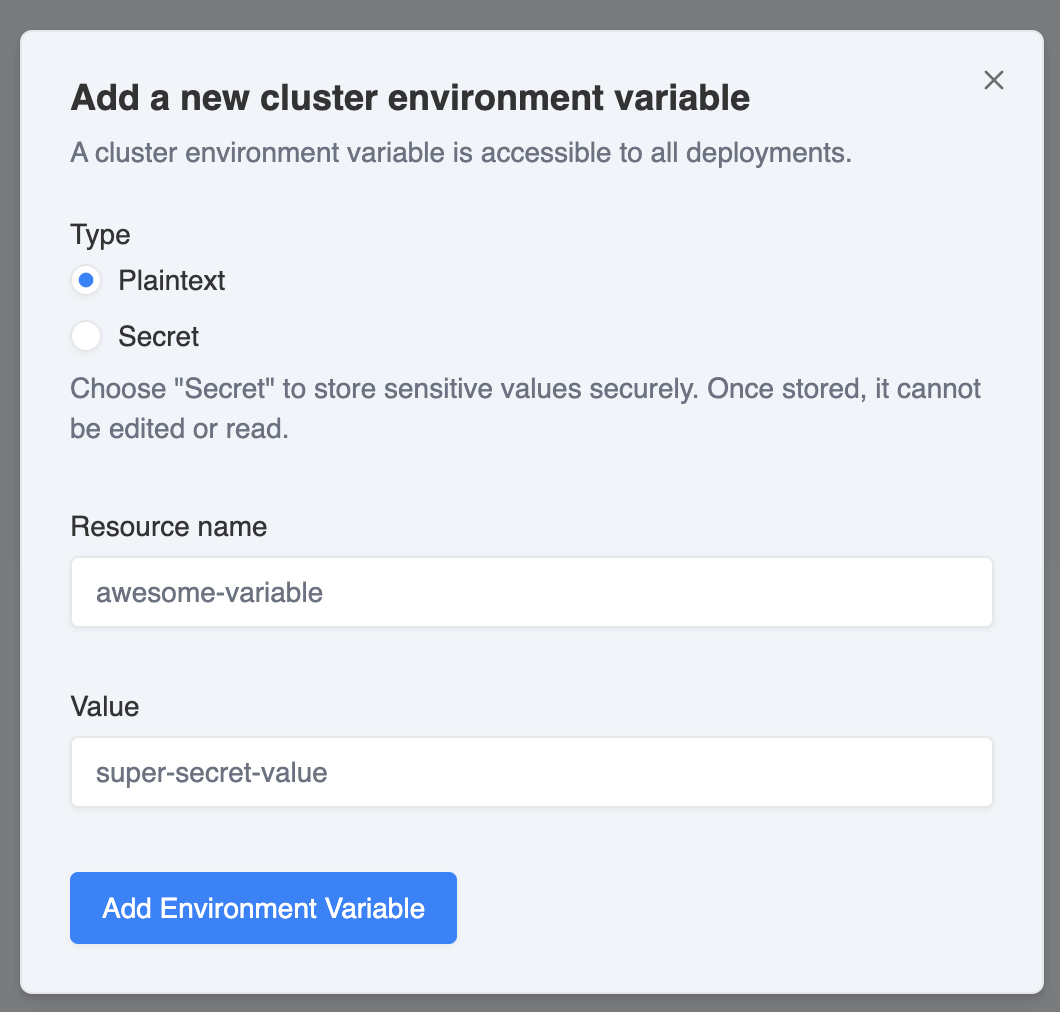
- Choose if the variable will be plaintext or a secret. Once a secret is created, its value will be hidden and cannot be viewed again. It cannot be changed, only deleted.
- Enter the Name and Value for the environment variable, then click Save to apply the changes.
Remove an Environment Variable
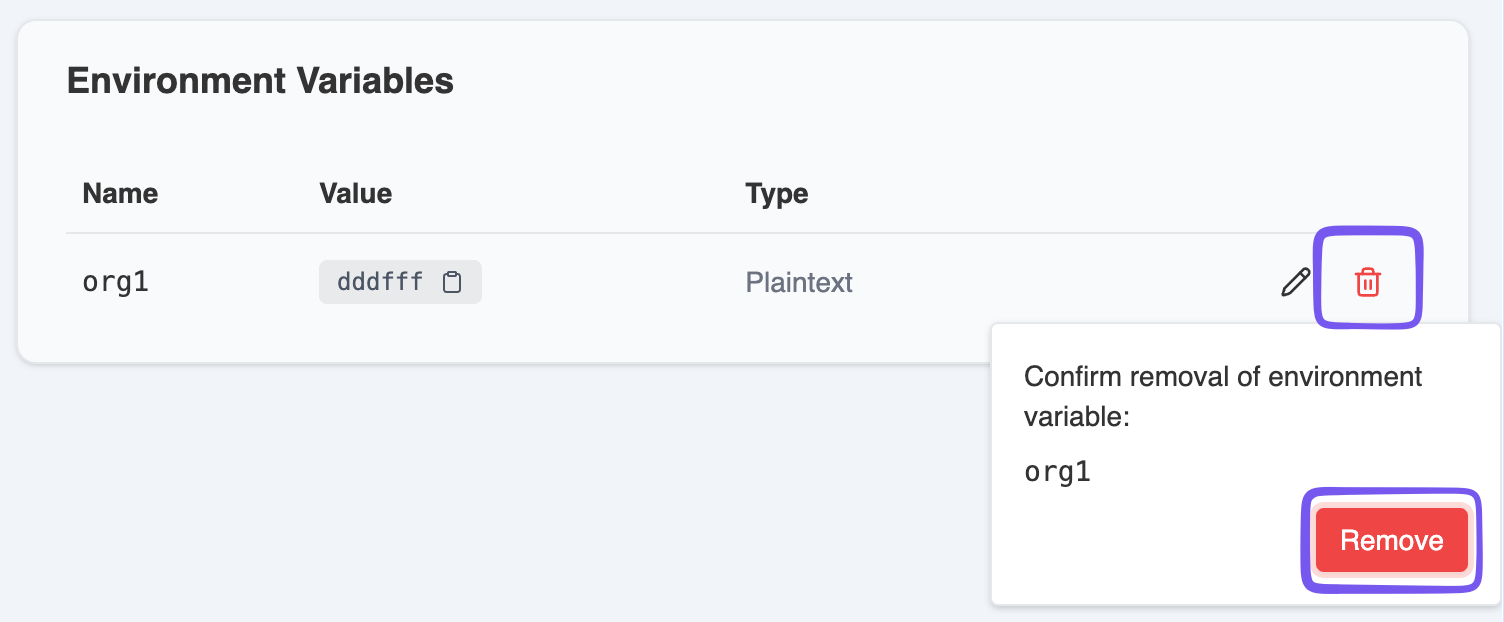
- Click the Trashcan button next to the environment variable you wish to remove.
- Confirm the deletion in the popup dialog by clicking Remove.
Applying Changes
Environment variable changes are applied automatically. Adding, updating, or removing a variable stores the new value and then starts a cluster restart so the change takes effect — there is no manual step on the Phase Two side.
Because the change requires a restart, note that:
- Only one restart runs against a cluster at a time. If a restart is already in flight — including one started by a cluster resource refresh — your change is stored but the restart is deferred until the in-flight one finishes.
- If you are making several environment variable changes at once, expect them to be applied in sequence rather than in a single restart.