Cluster Resources (Themes, Extensions, and Denylists)
Resources can be uploaded to your cluster for deployment to any Realm in that cluster. A cluster resource is one of three types:
- Theme — a Keycloak theme for login, account, or email UI customization. Uploaded per Keycloak major version.
- Extension — a Keycloak server extension JAR (providers and SPI code). Uploaded per Keycloak major version.
- Password Denylist — a list of passwords your users are not allowed to choose. It is not tied to a Keycloak major version and uses a single direct file upload. See Password Blacklist for how denylists work in Keycloak.
Resource limits by tier
The resources available depend on your cluster tier:
| Tier | Themes | Extensions | Password Denylists |
|---|---|---|---|
| Starter | 1 | Not available — themes only | Unlimited |
| Premium | 1 | 1 | Unlimited |
| Enterprise | Unlimited | Unlimited | Unlimited |
Password Denylists are not limited by tier. They are part of core Keycloak security rather than custom code, so you can upload as many as you need on any tier — including Starter, where custom extensions are not available.
Your current usage is shown next to the Resources heading (for example, 0/1 themes). Denylists are shown as a plain count, since they are uncapped.
Adding a resource
-
Visit the
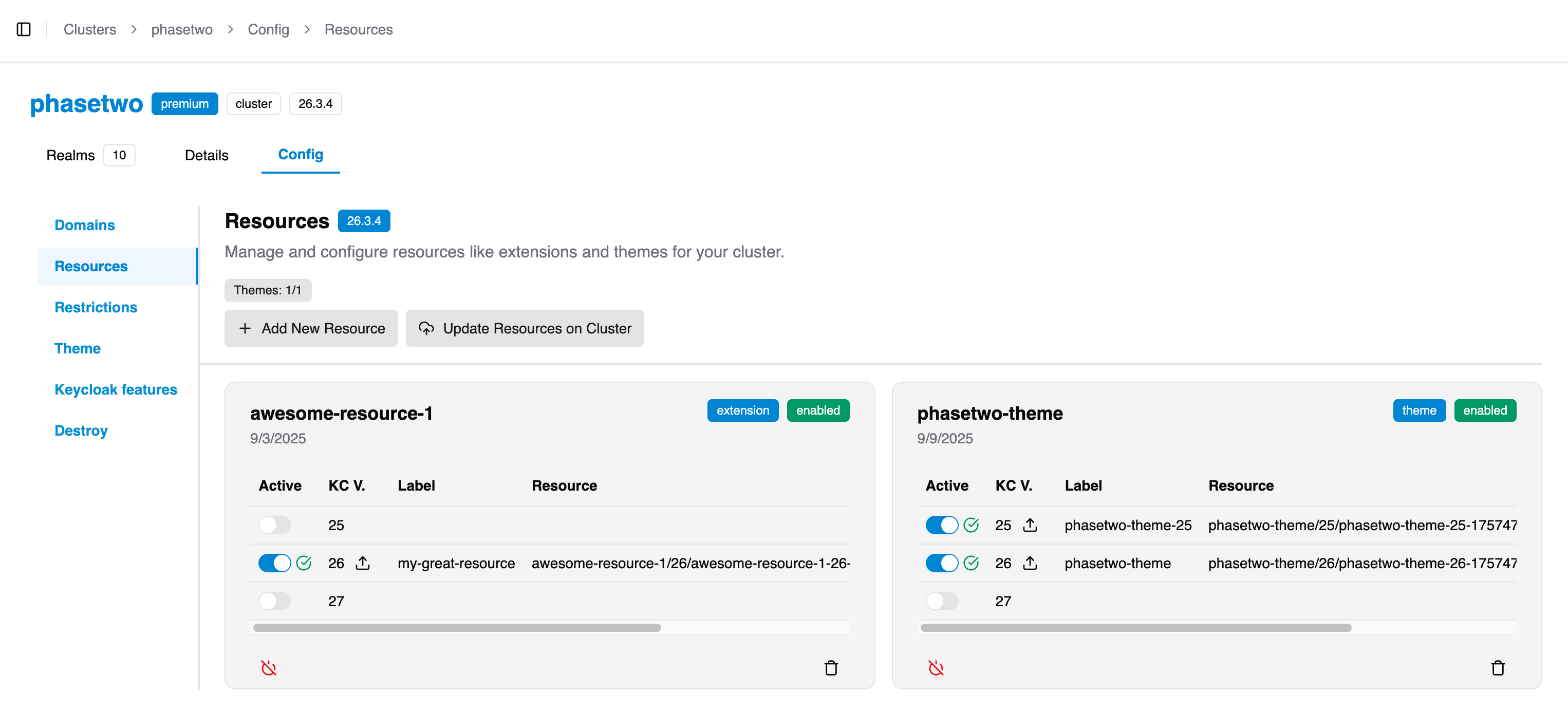
Cluster > Config > Resourcestab. -
Click Add New Resource. Give the resource a recognizable name (lowercase letters, numbers, and hyphens), for example
theme-customer-1-0-0, and choose the resource type — Theme, Extension, or Password Denylist.Any type you have run out of is shown but disabled, so you can always see what a higher tier offers. On Starter clusters the Extension option is disabled, with a note that Starter clusters do not allow custom extensions; Theme and Password Denylist remain available.
Screenshot neededresources-add-dialog.png— the Add a new cluster resource dialog showing the Theme / Extension / Password Denylist type selection with their icons. Include a Premium-cluster variant where the extension limit is used, showing the disabled Extension option alongside an available Password Denylist. -
After the resource is created, upload the file.
- Themes and extensions are uploaded per Keycloak major version. Activate a specific version (for example Keycloak 26 — only major versions are supported), click the upload icon, and select your file. The file must be a
.jarfile. Upload it for each Keycloak version you need it available on. - Password Denylists use a single, cluster-wide upload and are not tied to a Keycloak major version. The file must be a
.txtfile with one password per line.
A denylist is deployed to your cluster using the name of the resource plus a
.txtextension. A resource namedcommon-passwordsbecomescommon-passwords.txt, and that is the exact file name a realm's password policy must reference. The optional label on an upload is for display only and does not change the deployed file name.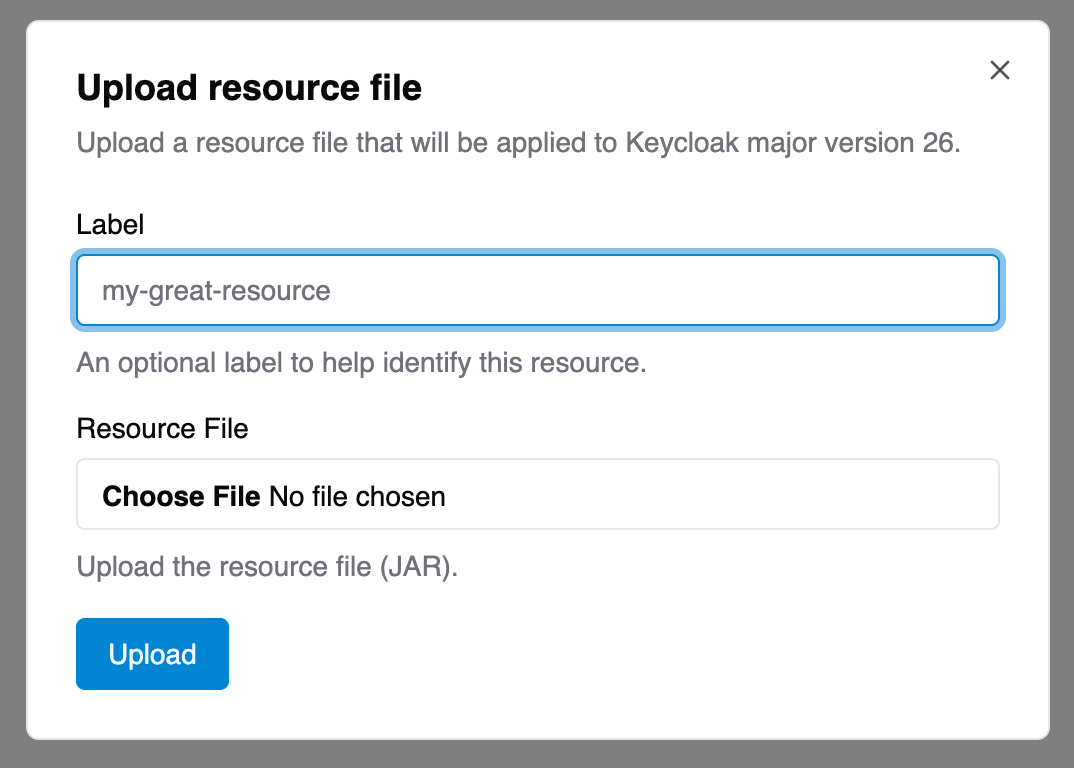
- Themes and extensions are uploaded per Keycloak major version. Activate a specific version (for example Keycloak 26 — only major versions are supported), click the upload icon, and select your file. The file must be a
Deploying resources to the cluster
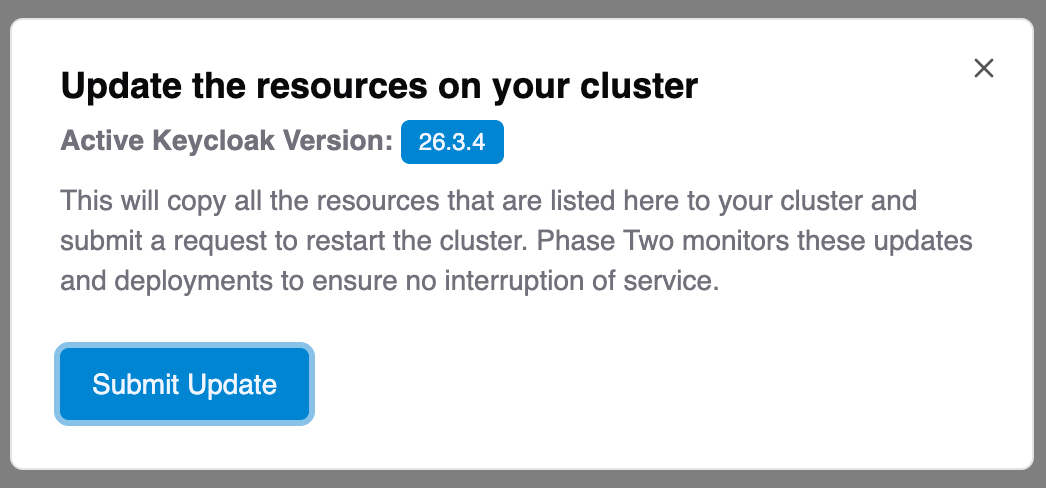
After your uploads are in place, click Refresh Cluster Resources to submit the deployment request. The latest valid resources are then copied to the cluster.
Because of the way Keycloak manages themes and extensions, this requires a restart of your cluster (usually a zero-downtime operation). The refresh and the restart are automated: submitting the request starts a workflow that reconciles your resources onto the cluster and restarts it, with no manual step on the Phase Two side.
Only one refresh or restart runs against a cluster at a time. If you submit a refresh while one is already in flight, the request is rejected until the first one finishes. Environment variable changes use the same restart, so a resource refresh and an environment variable change queue behind one another rather than running together.
Automated extension checks
When you upload an extension version, it is automatically scanned and the result is recorded against that version.
These checks are advisory. A finding is reported and tracked, but it does not block your extension from being deployed to your cluster. You remain responsible for the stability and security of the extensions you upload — an extension that fails on startup can prevent your cluster from starting. Test extensions on a non-production cluster before deploying them to production.
If you would like help reviewing an extension before you deploy it, contact support.
Once the refresh is complete, visit your Realm and select the theme for use. For an extension, configure it in your Realm according to how the extension operates. For a Password Denylist, use Apply to Realm as described below.
Applying a Password Denylist to a realm
Uploading a denylist makes the file available on the cluster; a realm only uses it once its password policy references it. You can do this from the dashboard rather than the Keycloak Admin Console.
- Expand the denylist resource in the resources list and click Apply to Realm.
- The dialog lists the realms on your cluster and shows which denylist each one currently uses, if any.
- Click Apply on a realm to set this denylist as its password denylist, or Remove to clear it.
Applying a denylist adds passwordBlacklist(<resource-name>.txt) to that realm's password policy and leaves every other policy item untouched. If the realm already used a different denylist, it is replaced.
Apply the denylist only after Refresh Cluster Resources and the resulting restart have completed. Keycloak validates that the file exists on the server when the policy is set, so applying it earlier fails.
A denylist that is in use cannot be deleted or disabled — remove it from the realm first. This prevents a realm being left with a password policy pointing at a file that is no longer on the cluster.
Finding and filtering resources
The resources list supports searching by name and filtering by type (Themes, Extensions, Password Denylist), along with sorting and expand/collapse controls. Use these to quickly locate a resource on clusters with many entries.
Managing resources
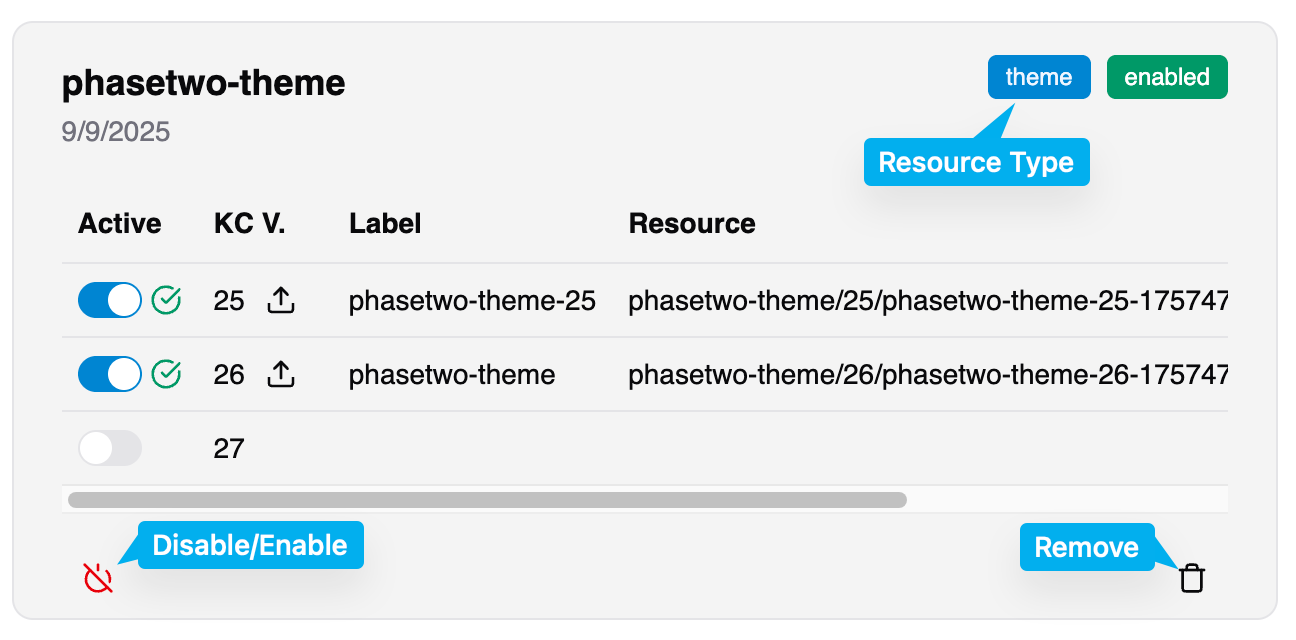
You can disable or enable a resource using the power icon on its card to activate or deactivate it on the cluster. Disabling is a good way to temporarily remove a resource without deleting it. Use the trash icon to remove the resource entirely.