Implement Multi-Tenancy Applications with Keycloak Organizations

Overview
A multi-tenant application is a software architecture where a single instance of an application serves multiple, distinct customer groups or “tenants.” Each tenant, often representing an organization or user group, shares the same underlying infrastructure and codebase but operates within its own securely isolated environment. This allows each tenant to have individualized data, configurations, and sometimes even unique customizations, while benefiting from a shared platform that reduces overall resource demands and maintenance. Multi-tenancy is commonly used in SaaS (Software as a Service) applications, enabling businesses to scale efficiently, lower costs, and streamline updates while ensuring that each tenant’s data and settings remain private and distinct from others within the same application. This approach is particularly valuable in enterprise applications, where companies may need to provide access to different organizations, departments, or customer groups within a single solution.
This post will cover a few things:
- Concept of how to implement this with Keycloak and Phase Two's Organization extension (Github).
- Proof-of-concept implementation that will include how to configure a Keycloak instance with clients, organizations, roles, and example applications to consume these implementations.
We have also given a detailed talk at Keycloak Dev Day on Multi-Tenancy within a Single Realm.
The implementation, while not difficult, does require knowledge of how to use Keycloak. If you're unclear at any point, please reach out sales@phasetwo.io.
Why use Organizations Instead of Multiple Realms?
Using Phase Two’s Keycloak Extension for Organizations provides a more efficient and scalable way to implement multi-tenancy than managing multiple realms in Keycloak. Here’s why:
- Resource Efficiency: Each realm in Keycloak creates isolated resources, which can lead to increased memory and CPU usage as the number of realms grows. By using a single realm with organizational support, you can maintain performance while still supporting multiple tenants.
- Centralized Management: Managing numerous realms can become complex, especially for shared configurations and customizations. The extension allows you to manage users, roles, and configurations within a single realm, reducing overhead.
- Simplified User Access Control: With organizations, you can easily segment users by tenant within the same realm. This allows for straightforward user and role management without needing to duplicate settings across realms.
- Improved Scalability: As your application scales, the single-realm approach with organizational structures is more sustainable, reducing maintenance and potential errors. It supports a logical separation for tenants without the performance and management limitations of numerous realms.
Overall, the extension simplifies and optimizes Keycloak for multi-tenant applications, focusing on efficient resource usage and management scalability.
Conceptualizing Multi-Tenant Implementation
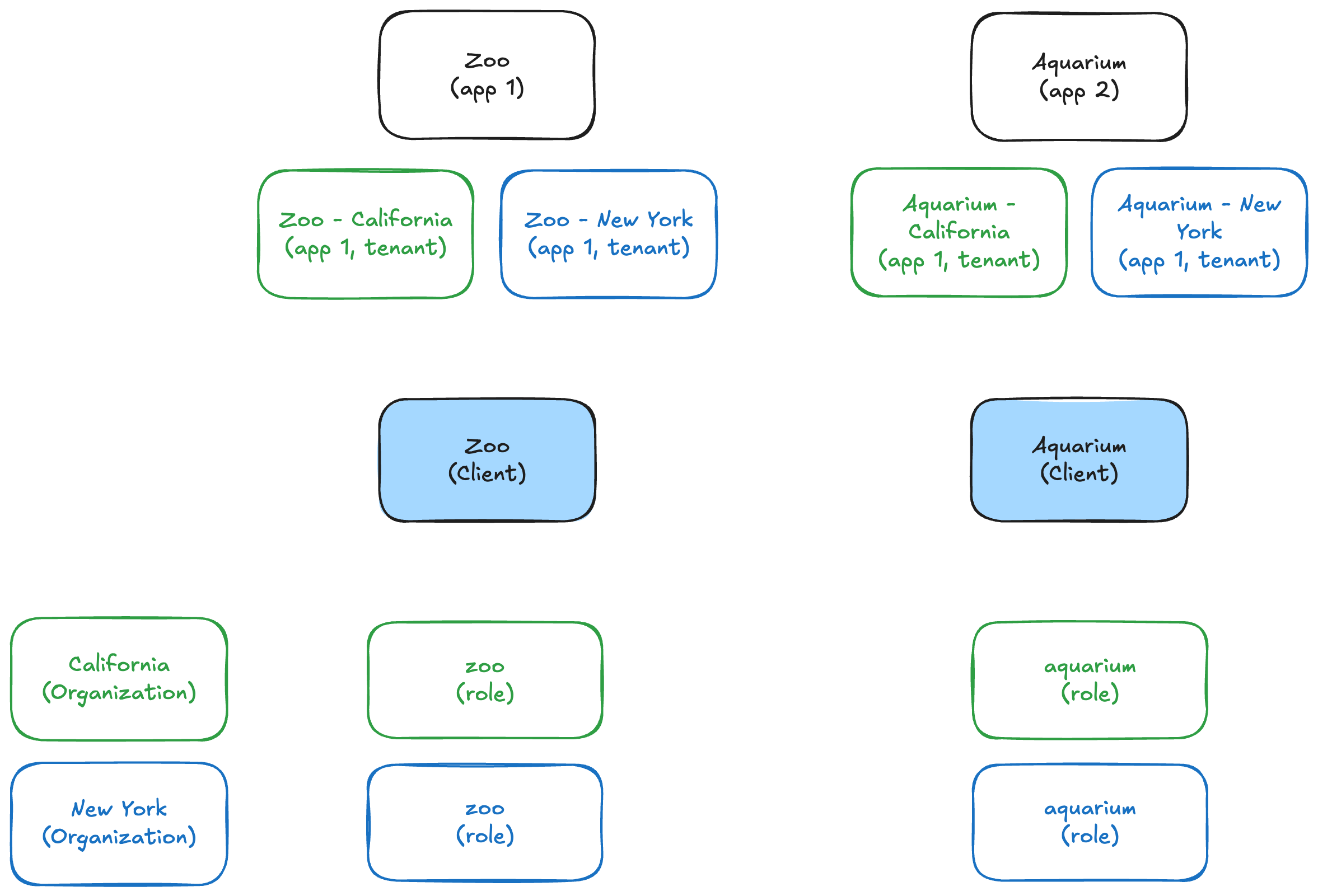
We're going to use the following example system:
- 2 applications
- 2 tenants of each applications
- Single Keycloak realm
- Two Keycloak Organizations to represent the tenants
- Role names that match the applications
We can visualize this in the following diagram:
In Keycloak, we match the system implementation by doing the following:
- Two Clients match the two Applications. More Clients added per tenant.
- Two Organizations match the two Tenants. This could be scaled out for additional tenants.
- One role per Tenant within each Organization.
If we break this down specifically with the names:
Application system
- Two applications: Zoo, Aquarium
- Two tenants: California, New York
Keycloak system
- Two clients: Zoo, Aquarium
- Two organizations: California, New York
- Two roles per for Org: zoo, aquarium
In order for users to then have access to the various Clients and Tenants, we would add them as members to the Organization, then assign them roles that match their access.
We can visualize this as follows:
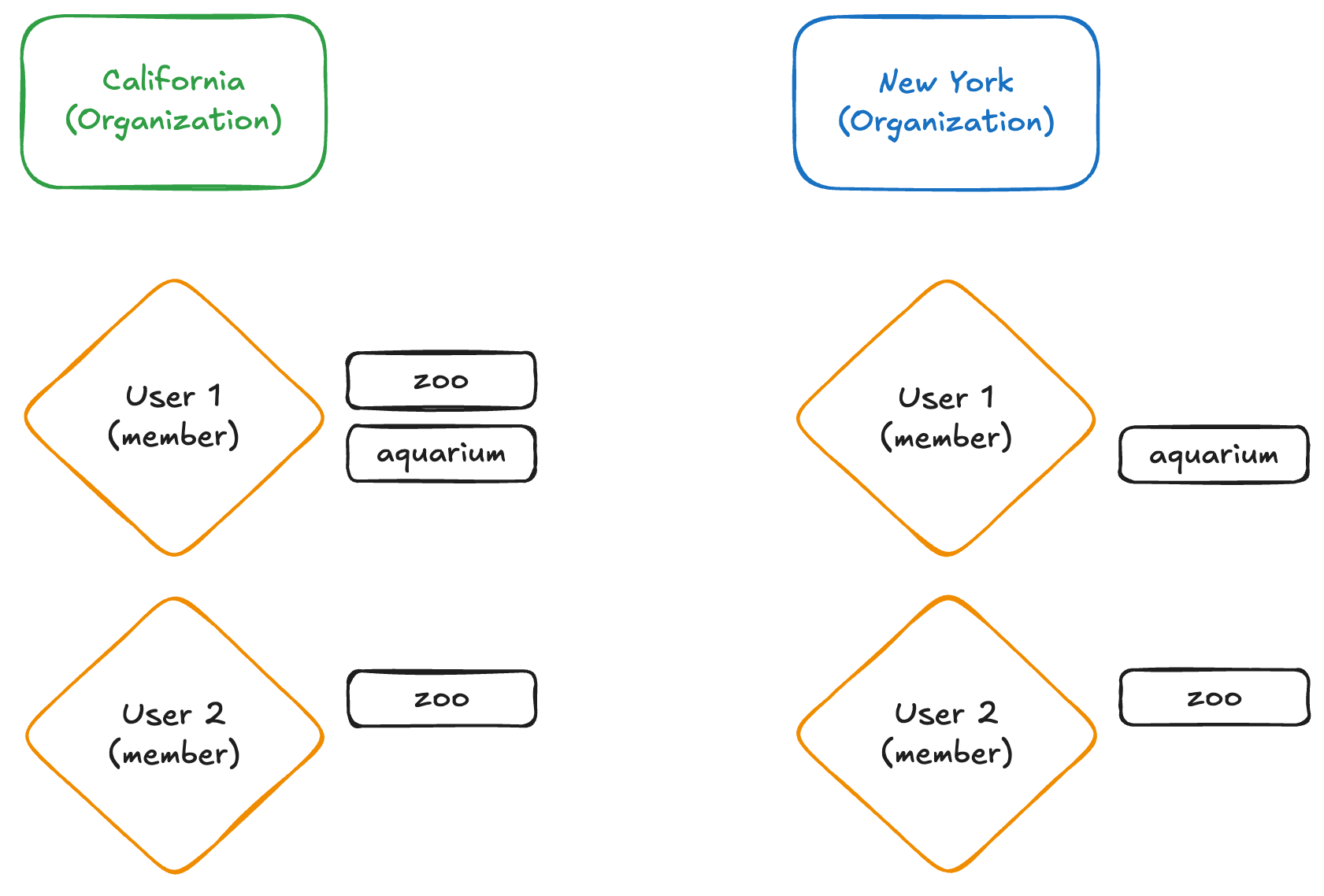
This represents following access:
- User 1
- Zoo application, California tenant
- Aquarium application, California tenant
- Aquarium application, New York tenant
- User 2
- Zoo application, California tenant
- Zoo application, New York tenant
Users are granted roles to represent application access. Users are made members of an Organization to represent tenant access.
Consuming and implementing this representation can be done via the Organizations API on the /me endpoint.
Sample Implementation
Now that we've discussed how the system is designed, let's work through an example of this application.
Keycloak Configuration
You can run Keycloak on your machine with Docker, or use Phase Two's hosted Keycloak. Both come with Phase Two's Organizations extension.
To run it locally, you need Docker with the Compose plugin. The Phase Two examples repo includes a local Phase Two Keycloak that is already set up for this example. Start it with the orgs profile:
git clone https://github.com/p2-inc/examples.git
cd examples
docker compose -f keycloak/docker-compose.yml --profile orgs up -d --wait
Its p2examples realm already has the zoo and aquarium clients and the users jane / jane and jacques / jacques, and the orgs profile adds the california and newyork organizations with their roles and members: everything the next section configures by hand. The admin console is at localhost:8080/auth/admin, with admin / admin, and the realm's issuer URL is http://localhost:8080/auth/realms/p2examples. docker compose -f keycloak/docker-compose.yml down stops Keycloak, and the next up starts again from a fresh realm. With the local Keycloak, skip to Configuring Client Applications.
To use Phase Two's hosted Keycloak instead, set up a realm and associated organizations there. Visit the Phase Two Dashboard to sign up, create a Starter cluster — free for 30 days — and add a realm to it. After you have created the realm, click the "Open Console" link to go to the Keycloak admin console.
Next we'll configure Keycloak and then configure the applications.
Configuring Keycloak
- Go to the Clients tab. We will create two Clients, with a
Client IDofzooandaquarium. For each, keep Client authentication off, check only Standard flow, and turn Require PKCE on with the S256 method. Enterhttp://localhost:4200/*(zoo) orhttp://localhost:4201/*(aquarium) for Valid redirect URIs, and+for Valid post logout redirect URIs and Web origins. The+web origin lets the apps call Keycloak and the Organizations API from the browser. - Go to the Users tab. Add a user with a username of
jane, first name ofjane, and last name ofgoodall. Add a second user with a username ofjacques, first name ofjacques, and last name ofcousteau. Set a password for each user in its Credentials tab. - Go to the Organizations tab. Create two Organizations. Name one
californiaand the othernewyork, with the display namesCaliforniaandNew York. For each organization, create two roles:aquariumandzoo. For each organization, add the two users created to them as members. - Inside the
californiaorganization, assign theaquariumrole to thejacquesuser. Assign thezoorole to thejaneuser. - Inside the
newyorkorganization, assign theaquariumrole to both users. Assign thezoorole only to thejaneuser.
At this point we should have all we require for configuring our client applications as needed.
Configuring Client Applications
We won't go through all the steps required to build a client application in this post. We have an Nx monorepo with two React apps, Zoo and Aquarium. They log users in with oidc-spa and call the Organizations API's /orgs/me endpoint with the user's access token. You need Node.js 24 and pnpm.
-
Clone the examples repo, if you haven't already, and open its
multitenantfolder. -
Point the apps at your Keycloak. Each app reads its settings from its own
.env, which points at the local Keycloak:apps/zoo/.envuses thezooclient, andapps/aquarium/.envtheaquariumclient. With the local Keycloak, there is nothing to change.For another Keycloak, copy
.env.local.sampleto.env.localin each app:cp apps/zoo/.env.local.sample apps/zoo/.env.localcp apps/aquarium/.env.local.sample apps/aquarium/.env.localThen set your realm's issuer URL,
https://<your-keycloak-host>/auth/realms/<your-realm>, and the app's client ID, if you named the client differently. For Zoo,apps/zoo/.env.localstarts as:VITE_OIDC_ISSUER_URI=https://your-keycloak.example.com/auth/realms/your-realmVITE_OIDC_CLIENT_ID=zooThe apps derive the Organizations API URL and the realm name from the issuer URL.
-
Install the dependencies and start both apps:
pnpm installpnpm devZoo runs on localhost:4200 and Aquarium on localhost:4201.
pnpm dev:zooandpnpm dev:aquariumstart only one of them.
Log in as the jane and jacques user in each app to see the variation of which organization and roles they have access to. The sample assigns the roles a bit differently than User 1 and User 2 in the diagram above. Both users are members of both organizations, with these roles:
| User | California | New York |
|---|---|---|
jane | zoo | zoo, aquarium |
jacques | aquarium | aquarium |
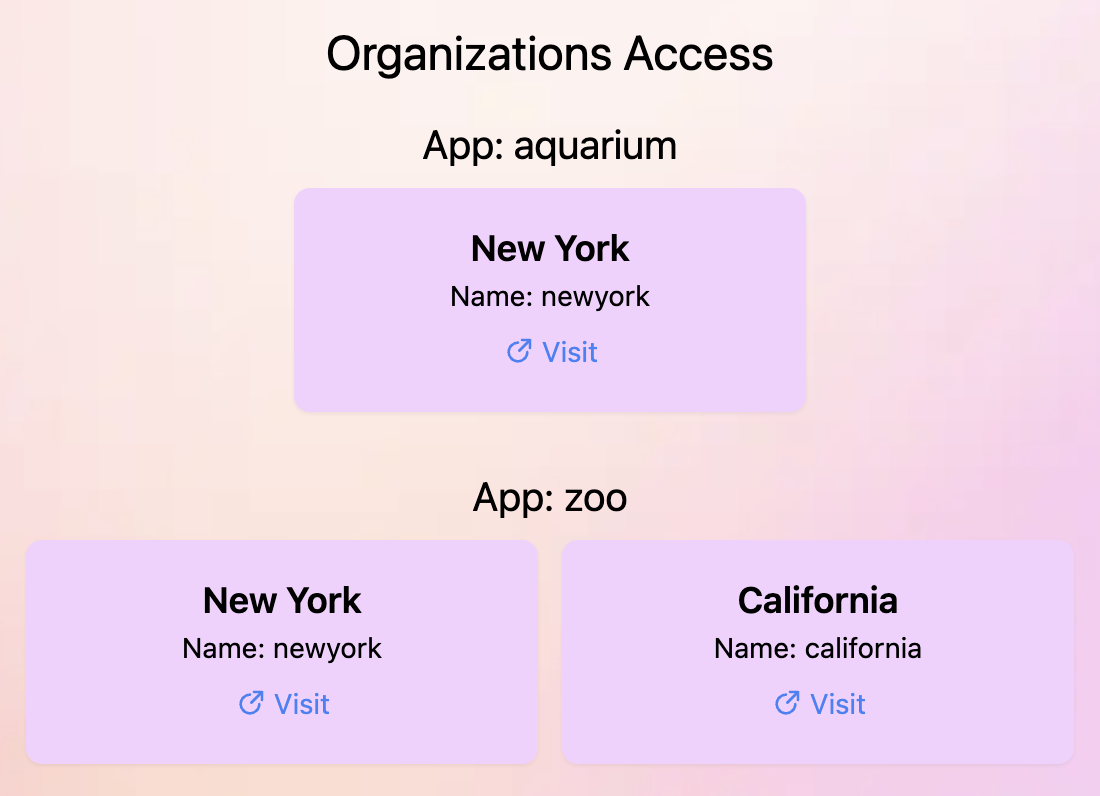
Jane can use Zoo for both tenants and Aquarium only for New York. Jacques can use Aquarium for both tenants and Zoo for neither. Each app lists the user's organizations with their roles, and shows for each one whether it gives access to the app. The role that grants access is appRole in apps/zoo/src/app/auth.tsx and apps/aquarium/src/app/auth.tsx. You'll see a variation of this:
In Conclusion
Creating a multi-tenant application isn't necessarily easy, but it is well within the capability of Keycloak. If you end up leveraging our Organization's extension to support multi-tenancy, let us know.