Cluster Resources (Themes and Extensions)
Resources, like a theme or extension, can be uploaded to your cluster for deployment to any Realm (deployment) in that cluster.
Note: Premium clusters are limited to a single theme resource and no extensions. Enterprise clusters can have multiple themes and extensions.
Uploading a Theme or Extension
-
Start by visiting the
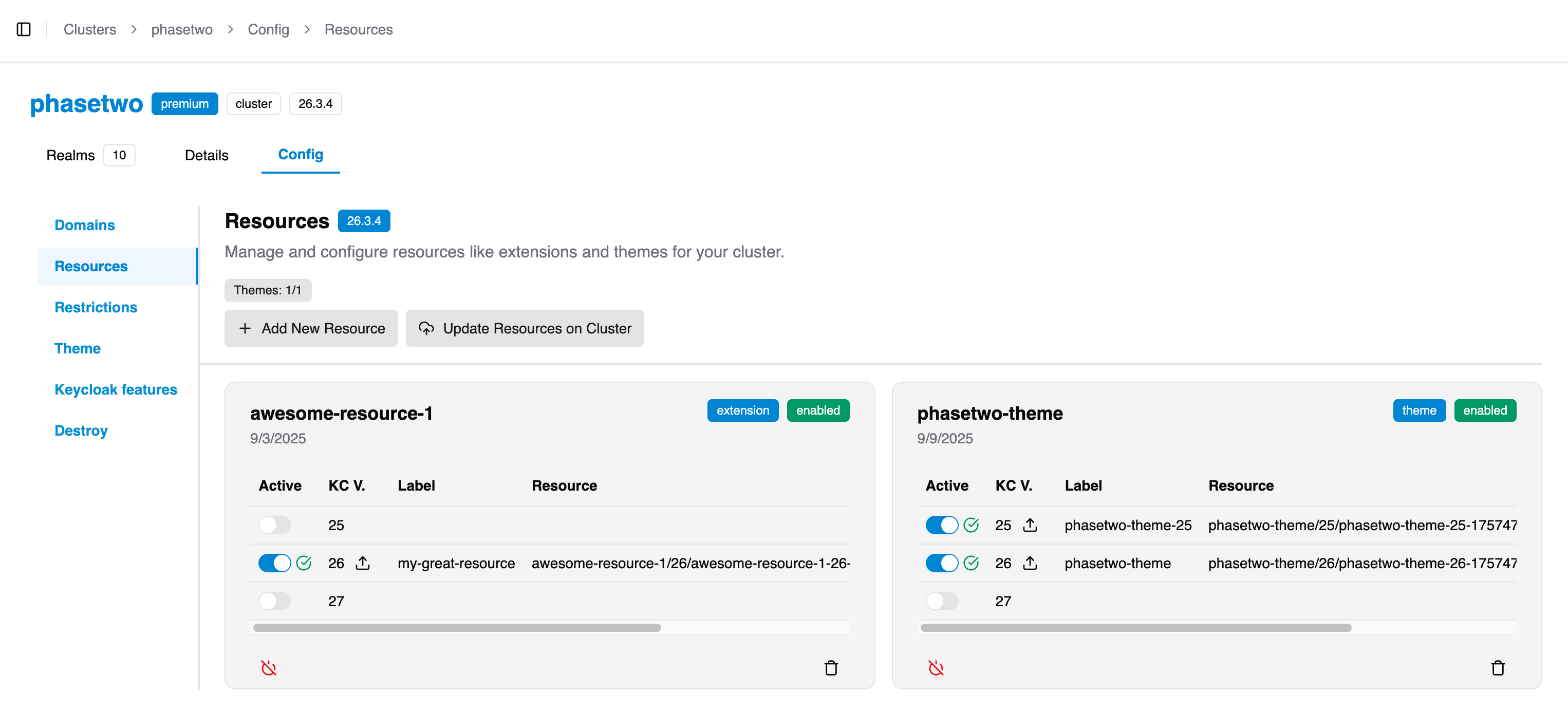
Cluster > Config > Resources tab. -
If you have not already done so, create a
Resource. A resource is a named entity that allows your upload the theme or extension for a specific Keycloak version. Give the name of the resource something recognizable, liketheme-customer-1-0-0.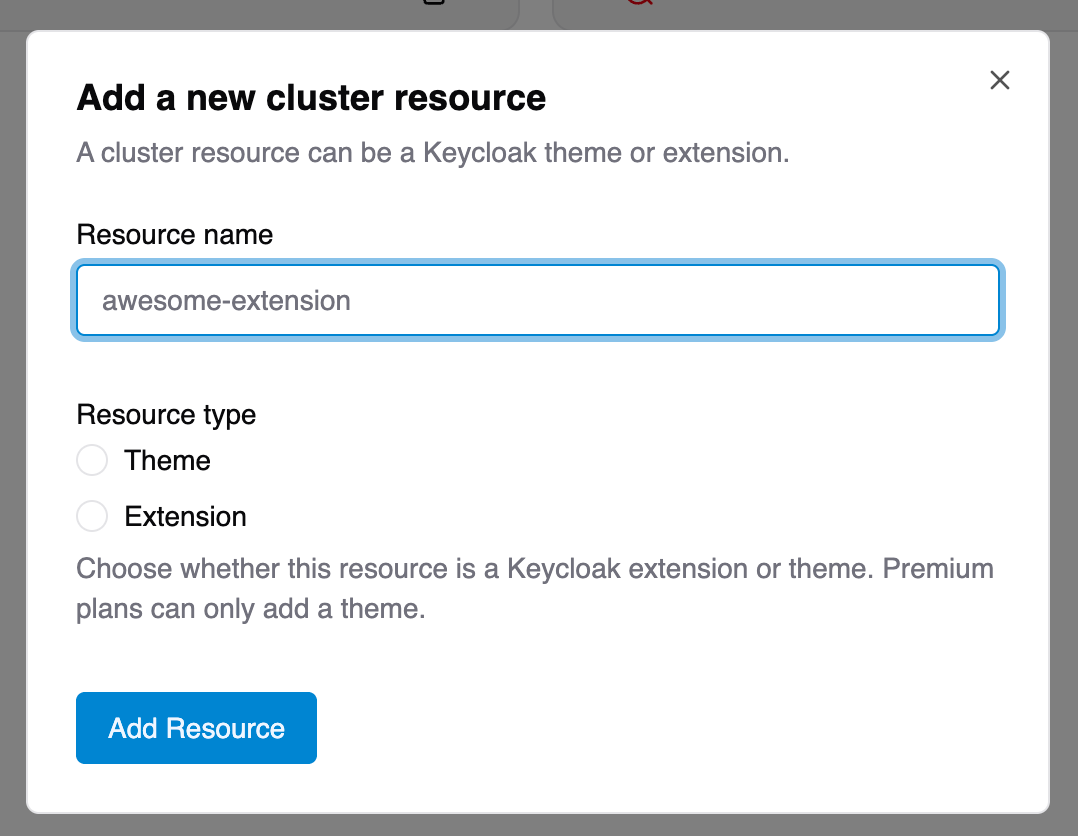
-
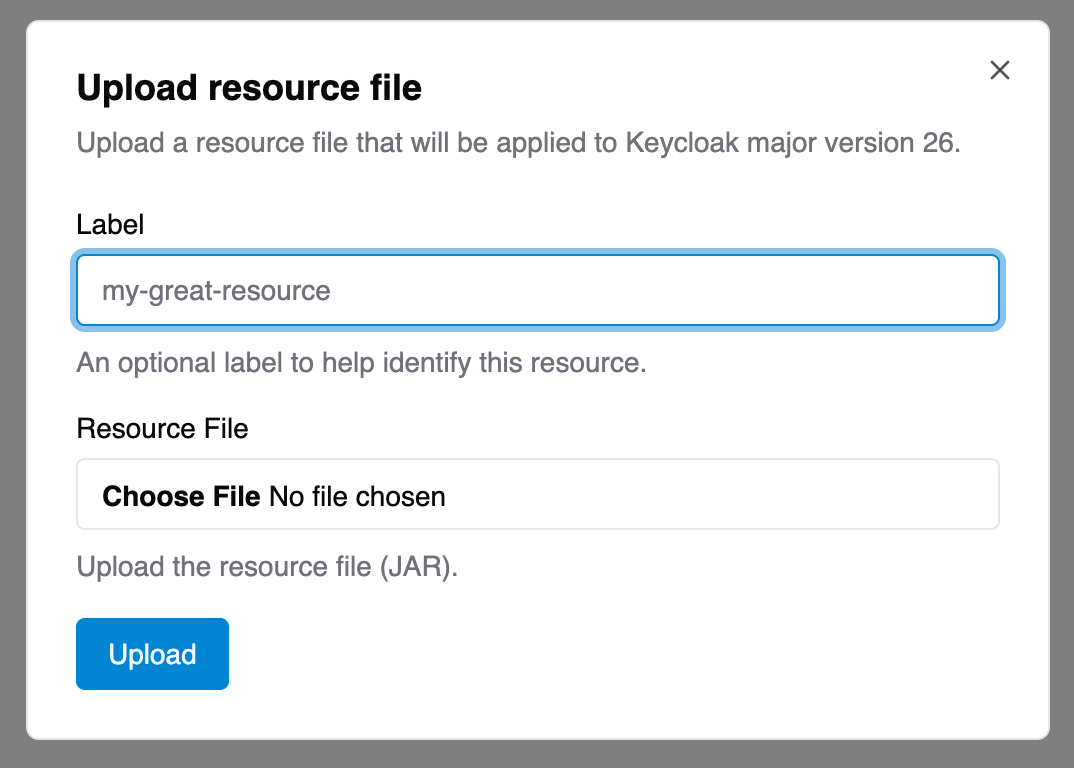
After the resource is created, you can upload the theme or extension. Activate a specific version, say Keycloak 26 (only major versions are supported) and then click the upload icon. Select your file and upload it. The file must be a .jar file.
-
After the upload is complete, your resource is ready to be deployed to your cluster. Click the
Update Resources on Clusterbutton to alert Phase Two staff to trigger loading this resource. Due to the way Keycloak manages themes and extensions, this requires are restart of your cluster (usually a zero-downtime operation). Keycloak staff review all resources before applying them to a cluster to ensure uptime and functionality.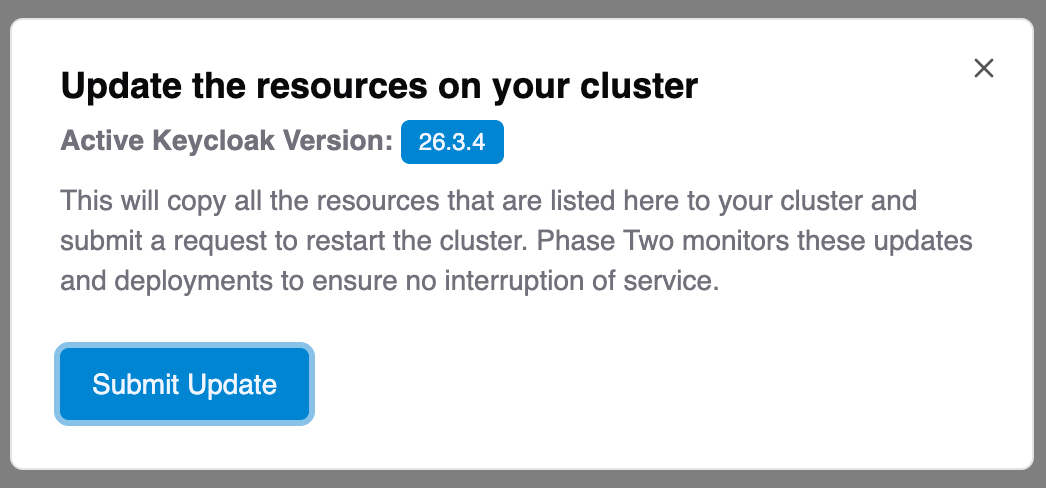
-
After the cluster has been restarted, you can visit your Realm (deployment) and select the theme for use. If using an extension, then you will need to configure the extension in your Realm based on the operation of the extension.
Managing Resources
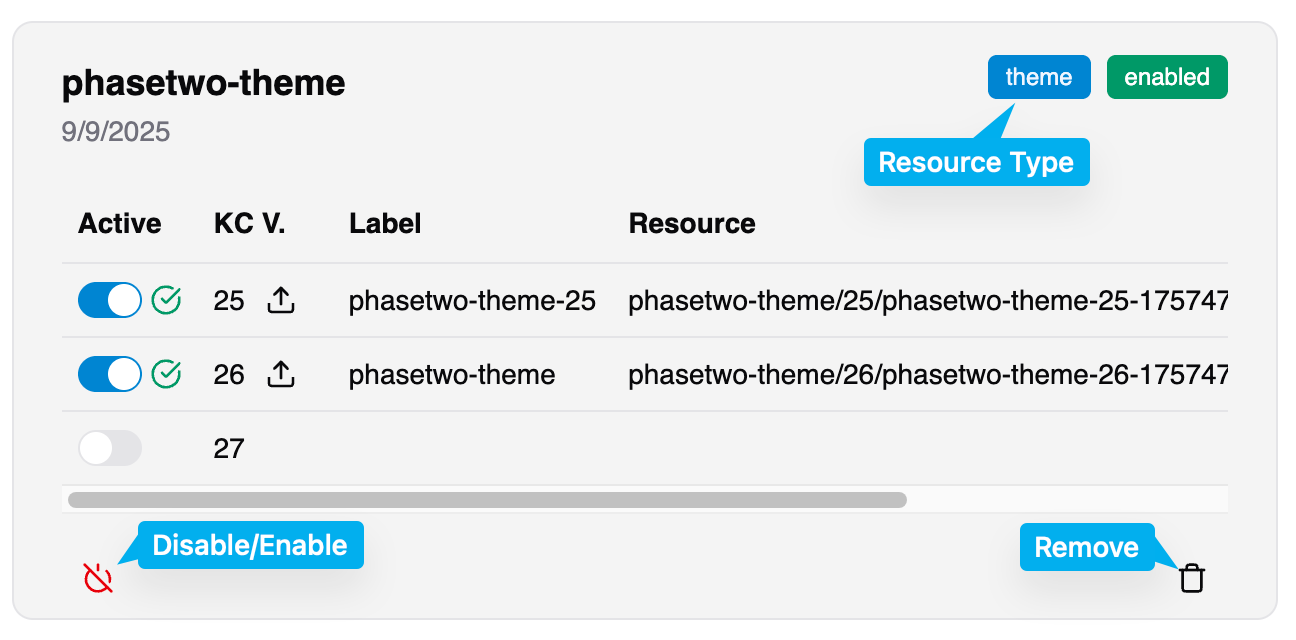
You can disable or enable resources using the power icon in the card. This will activate or deactivate the resource on the cluster. You can remove the resource entirely from your cluster using the trash icon. Disabling is a good way to temporarily remove a resource without deleting it.