Organization SCIM Provisioning
SCIM 2.0 lets upstream identity providers (Okta, Microsoft Entra ID, OneLogin, JumpCloud, Google Workspace, etc.) push users into your application automatically. When IT adds someone to a group in their IdP, SCIM provisions that user. When they remove someone, SCIM de-provisions them. Without SCIM you are relying on just-in-time provisioning at login, which means a fired employee can still sign in until somebody manually disables their account.
Phase Two's Organizations extension gives every organization its own SCIM 2.0 endpoint, so each customer's IdP provisions only into that customer's organization, with credentials scoped to that organization. This is different from Keycloak's built-in SCIM, which operates at the realm level.
SCIM support is experimental. The API shape, configuration schema, and realm-level enablement flag may change in a backwards-incompatible way before it stabilizes. Pin to a specific version of keycloak-orgs if you depend on it.
Enabling SCIM for the realm
SCIM is gated by a realm-level feature flag and is disabled by default. While the flag is off, the SCIM tab is hidden on every organization's detail page and the SCIM configuration endpoints return 404 Not Found.
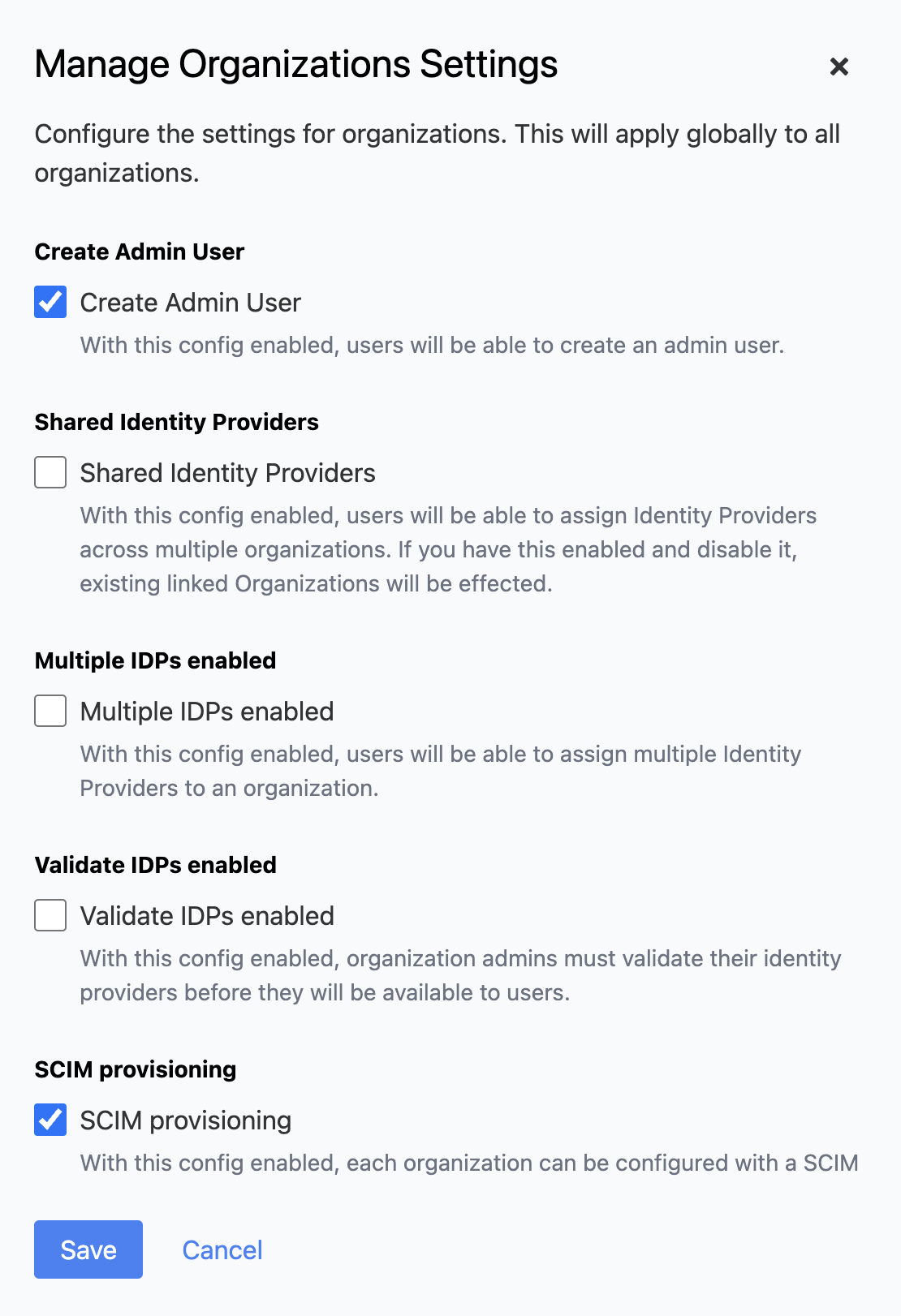
To turn it on, navigate to the Organizations section, click Manage Settings, tick Enable SCIM, and save. The flag is persisted as the realm attribute _providerConfig.orgs.config.scimEnabled and can also be flipped via PUT /{realm}/orgs/config.
Finding the SCIM configuration for an organization
Once the realm flag is on, open an organization and switch to the SCIM tab. The tab shows two read-only fields at the top — the ID (always equal to the organization ID) and the SCIM URL (the full URL the upstream IdP should call). Copy the SCIM URL into the SCIM provisioning settings of the upstream system.
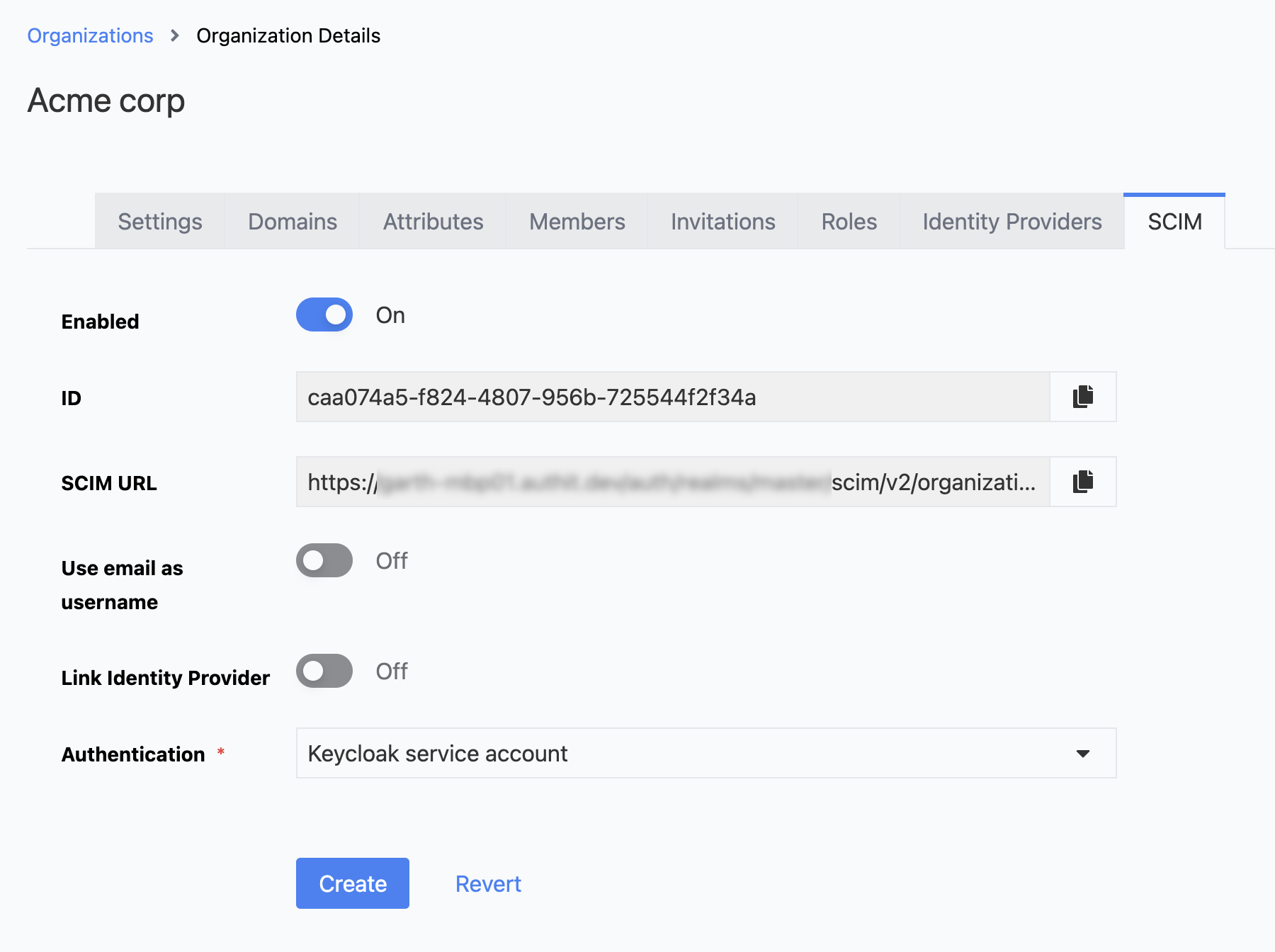
Below those fields, the form controls how the endpoint behaves:
- Enabled — whether the SCIM endpoint accepts traffic for this organization. Turn off to pause provisioning without losing the configuration.
- Email as username — force the provisioned user's
usernameto mirror theiremail. - Link to organization IdP — federate provisioned users with the organization's configured identity provider so they can sign in via SSO immediately after provisioning.
- Authentication type — controls how the endpoint authenticates inbound SCIM calls. See below.
Password and shared-secret fields render blank when the form is re-opened. To preserve the existing credential, leave the field blank when saving. To rotate it, type a new value — the server replaces the stored Argon2id hash.
Configuring the authentication type
The SCIM endpoint authenticates every inbound request using one of four modes. Pick the one that matches what the upstream IdP can send.
KEYCLOAK
Authenticates with a Keycloak-issued access token (Bearer). The caller must hold the realm-management roles needed to manage members of the organization. Use this when the SCIM client is something inside the Keycloak trust boundary — an internal service, sidecar, or provisioning job. No additional fields are required.

EXTERNAL_JWT
Validates an inbound JWT issued by an external IdP. The token's iss and aud claims must match the configured values, and the signature is verified against keys fetched from the configured JWKS URI. This is usually the right mode for enterprise IdPs that can mint signed JWTs targeting your SCIM endpoint.
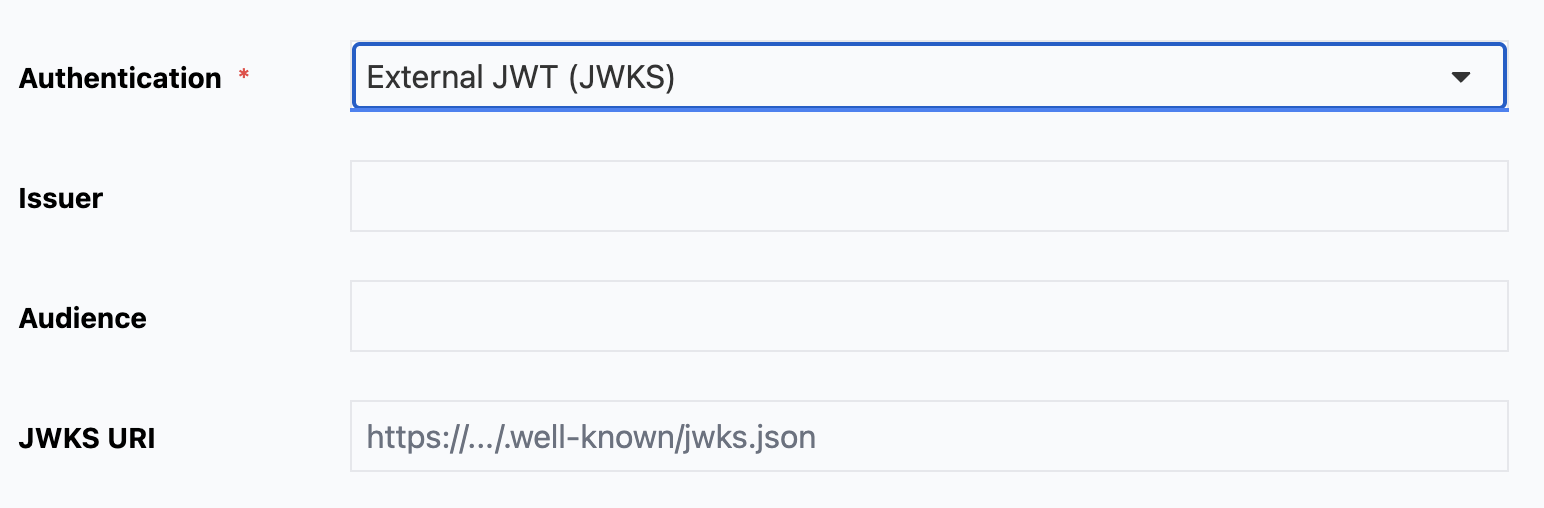
Fill in:
- Issuer — expected
issclaim, must exactly match the upstream IdP's issuer URL. - Audience — expected
audclaim. - JWKS URI — URL the server fetches to validate the JWT signature.
EXTERNAL_SECRET
Bearer-style shared secret. The client sends Authorization: Bearer <secret> and the server compares the value against a stored Argon2id hash. Use this when the upstream IdP can attach a static bearer credential to its outbound SCIM calls.
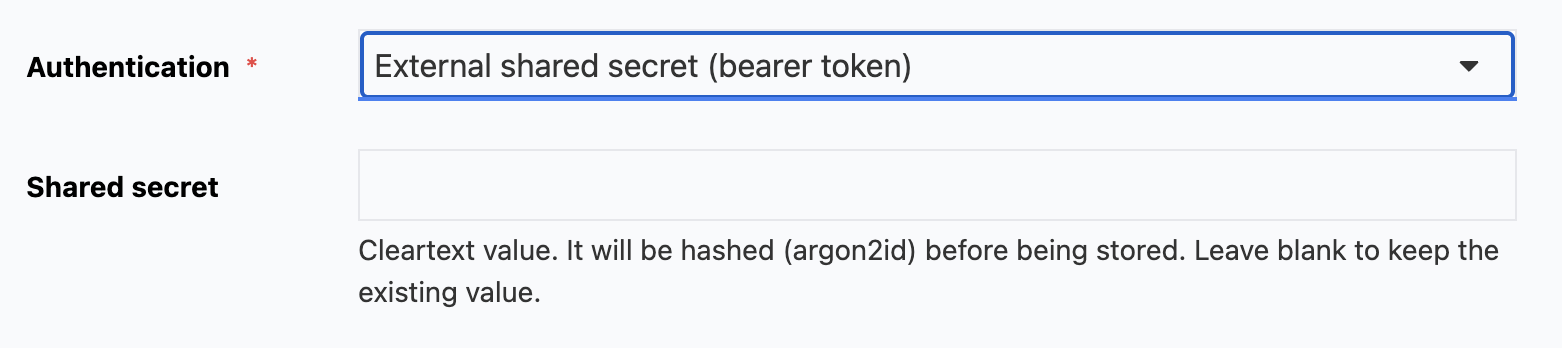
Fill in the Shared secret field — a long random opaque value.
EXTERNAL_BASIC
HTTP Basic auth. The password is hashed with Argon2id before storage. Use this for IdPs whose SCIM client only supports username/password.
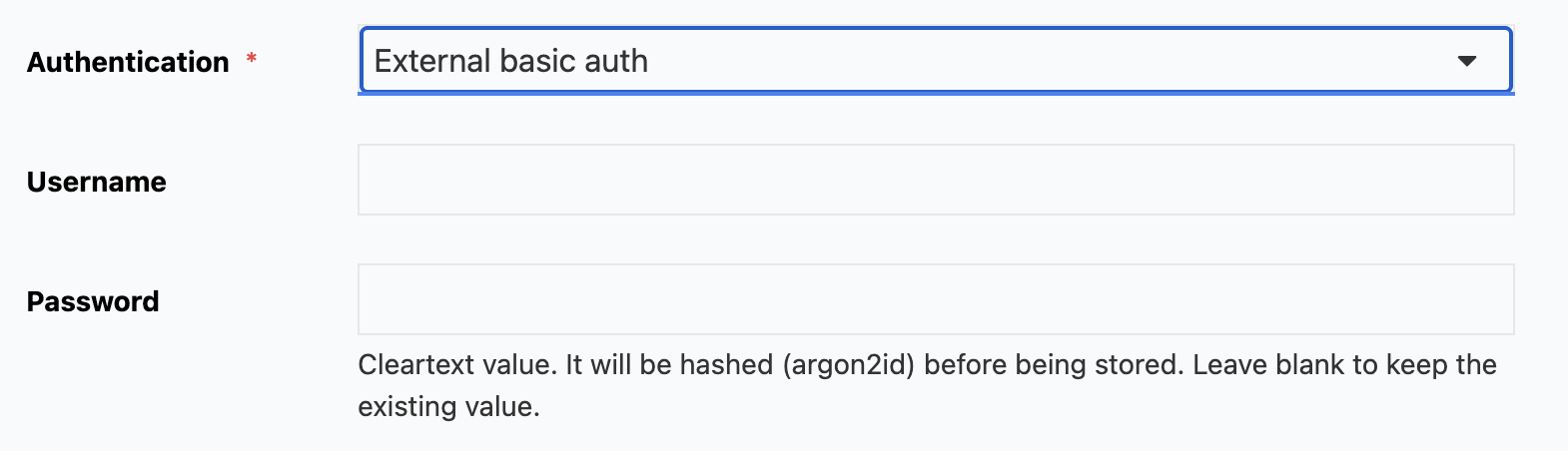
Fill in Username and Password.
Configuring SCIM via the API
The same configuration is available over REST at /{realm}/orgs/{orgId}/scim. The endpoints return 404 Not Found if the realm-level SCIM flag is off.
| Method | Purpose | Required permission |
|---|---|---|
GET | Read the current SCIM configuration | view-organizations or view-identity-providers on the org |
POST | Create the configuration (409 if one already exists) | manage-organizations or manage-identity-providers on the org |
PUT | Update the configuration | manage-organizations or manage-identity-providers on the org |
DELETE | Remove the configuration | manage-organizations or manage-identity-providers on the org |
The request and response body is the same shape used by the UI. The auth field is polymorphic — its type discriminator picks one of KEYCLOAK, EXTERNAL_JWT, EXTERNAL_SECRET, or EXTERNAL_BASIC, and the remaining fields depend on that choice. A minimal example:
{
  "enabled": true,
  "email_as_username": false,
  "link_idp": true,
  "auth": {
    "type": "EXTERNAL_BASIC",
    "username": "okta",
    "password": "S3cret!"
  }
}
Cleartext secrets and basic passwords sent on POST or PUT are hashed with Argon2id before persistence. To leave the existing credential in place on update, omit the secret field. To rotate, send the new cleartext.
Full request/response details, including each auth variant and all status codes, are in the API reference under Organization SCIM.
The SCIM 2.0 endpoint
Once configured and enabled, the SCIM 2.0 service is reachable at:
{authServerUrl}/realms/{realm}/scim/v2/organizations/{orgId}/
It implements the standard SCIM 2.0 resource paths (/ServiceProviderConfig, /ResourceTypes, /Schemas, /Users, /Groups) over the organization's member graph. Configure the upstream IdP's SCIM provisioning to point at this URL using the authentication mode selected above.