Automatically redirect users to correct IdP based on their email domain
Automatic IdP redirection lets you route users to the correct organization-specific identity provider based on their email domain. This is a common setup for B2B SaaS applications where each customer organization manages its own SAML or OIDC provider.
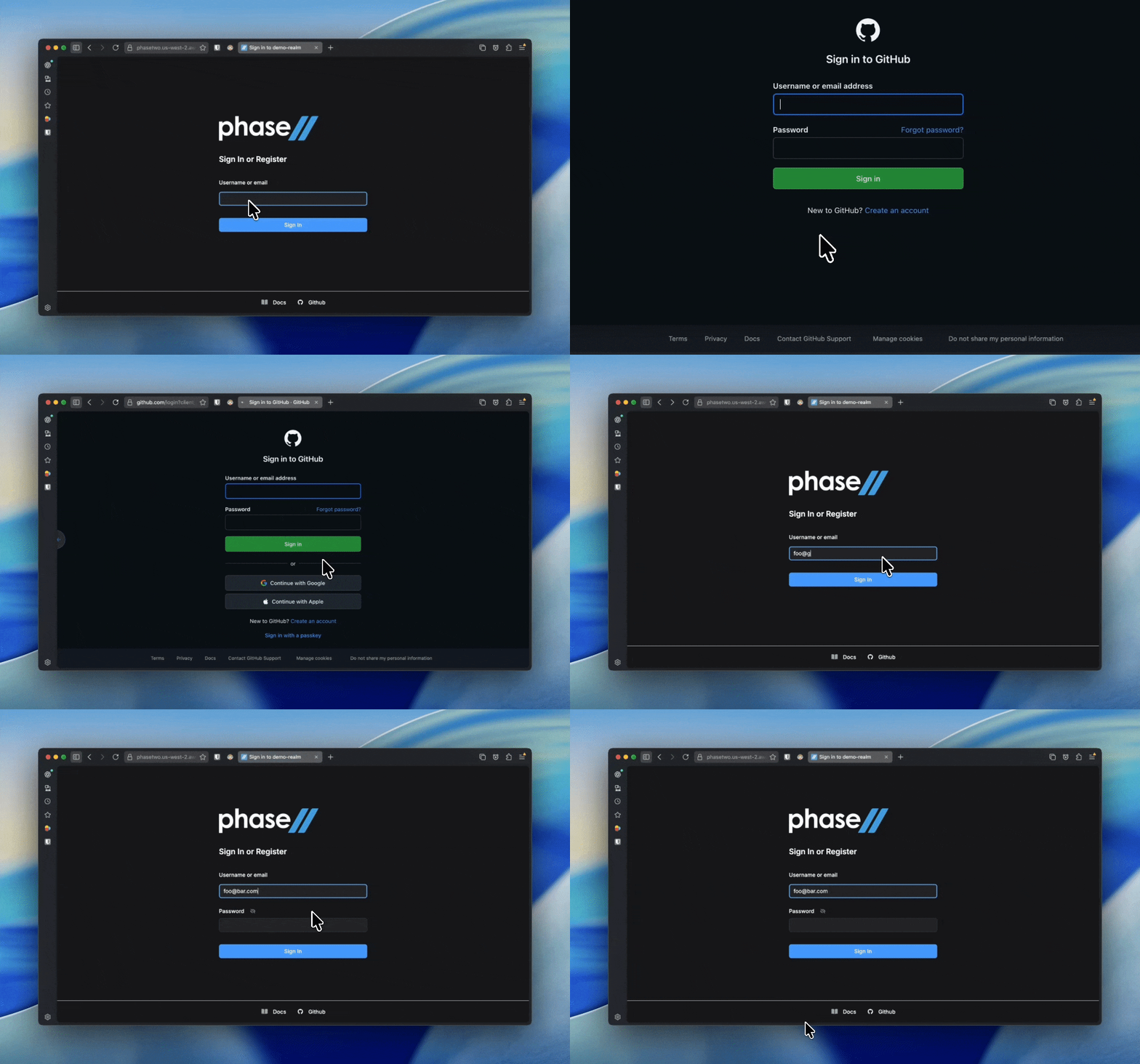
Typical flow
- An organization administrator or site administrator creates the identity provider (using the IdP Wizards).
- That identity provider is associated with an organization.
- One or more verified email domains are associated with the same organization.
- The login flow prompts the user for their email address first.
- If the email domain matches an organization's configured domains, the user is redirected to the associated identity provider.
After a successful login, users authenticating through an organization-associated identity provider can also be added to that organization automatically.
Recommended setup
For most deployments, the setup looks like this:
- Use the IdP Wizard to let organization admins configure their own identity provider
- Manage the provider association and verified domains in Organization Identity Providers
- Use the Enterprise SSO flow if Keycloak is handling the primary login experience
- Use SSO Without Auth if your application controls login and only needs Phase Two for SSO redirection and token handling
About the Home IdP Discovery extension
Phase Two's automatic organization redirection is based on the same pattern popularized by the open-source Home IdP Discovery extension for Keycloak.
At a high level, that extension adds a new authenticator to a browser-based login flow. Instead of showing users a password form and a long list of available identity providers up front, it can present an email-first login step, extract the domain portion of the email address, and use that domain to choose the correct upstream identity provider automatically.
This is especially useful in B2B or multi-tenant SaaS environments where:
- each customer organization has its own SAML or OIDC provider
- end users know their email address but should not need to know an internal IdP alias
- you want to avoid a confusing "choose your provider" screen
The upstream extension also supports a few useful discovery behaviors:
- matching domains stored on the identity provider itself
- optional subdomain matching
- optional forwarding to an already linked identity provider
- either redirecting to the first match or prompting the user to choose when multiple providers match
In its default form, the upstream extension stores discovery domains on each identity provider under the config key home.idp.discovery.domains.
How Phase Two uses it for organization redirection
Phase Two uses a forked, organization-aware version of this discovery approach inside our Organizations extension.
Conceptually, the flow is the same:
- the user enters an email address
- the login flow extracts the domain
- the domain is matched to an organization
- the organization's associated identity provider is selected
- the user is redirected to that identity provider
The important difference is that Phase Two ties discovery to organization data, not just raw IdP configuration.
When you manage organization SSO with Phase Two:
- the organization owns the verified email domains
- the identity provider is associated with that organization
- the discovery metadata is written in a way that is compatible with Home IdP Discovery style lookup
- the redirect behavior is resolved in the context of organizations rather than as a generic Keycloak-only domain lookup
This is why the Organizations feature feels more natural for customer-managed SSO. Your customer admins work in terms of:
- "our organization"
- "our verified domains"
- "our identity provider"
rather than needing to hand-edit IdP config for domain routing themselves.
Phase Two also stores organization metadata alongside the identity provider, including keys such as home.idp.discovery.domains and home.idp.discovery.org, so the redirect logic can resolve the correct organization-specific IdP relationship during login.
In practice, this means Phase Two uses Home IdP Discovery as the login-flow mechanism, but layers organization ownership, verified domains, and organization-aware broker login behavior on top of it.
Setting up an authentication flow for automatic IdP redirection
In order to have users automatically redirected to the correct IdP based on their email domain, you will need to set up an authentication flow that performs this logic. Phase Two provides the necessary plumbing to quickly customize a flow for this use case. It leverages an extension called Home IdP Discovery that adds a new authenticator step to perform this function.
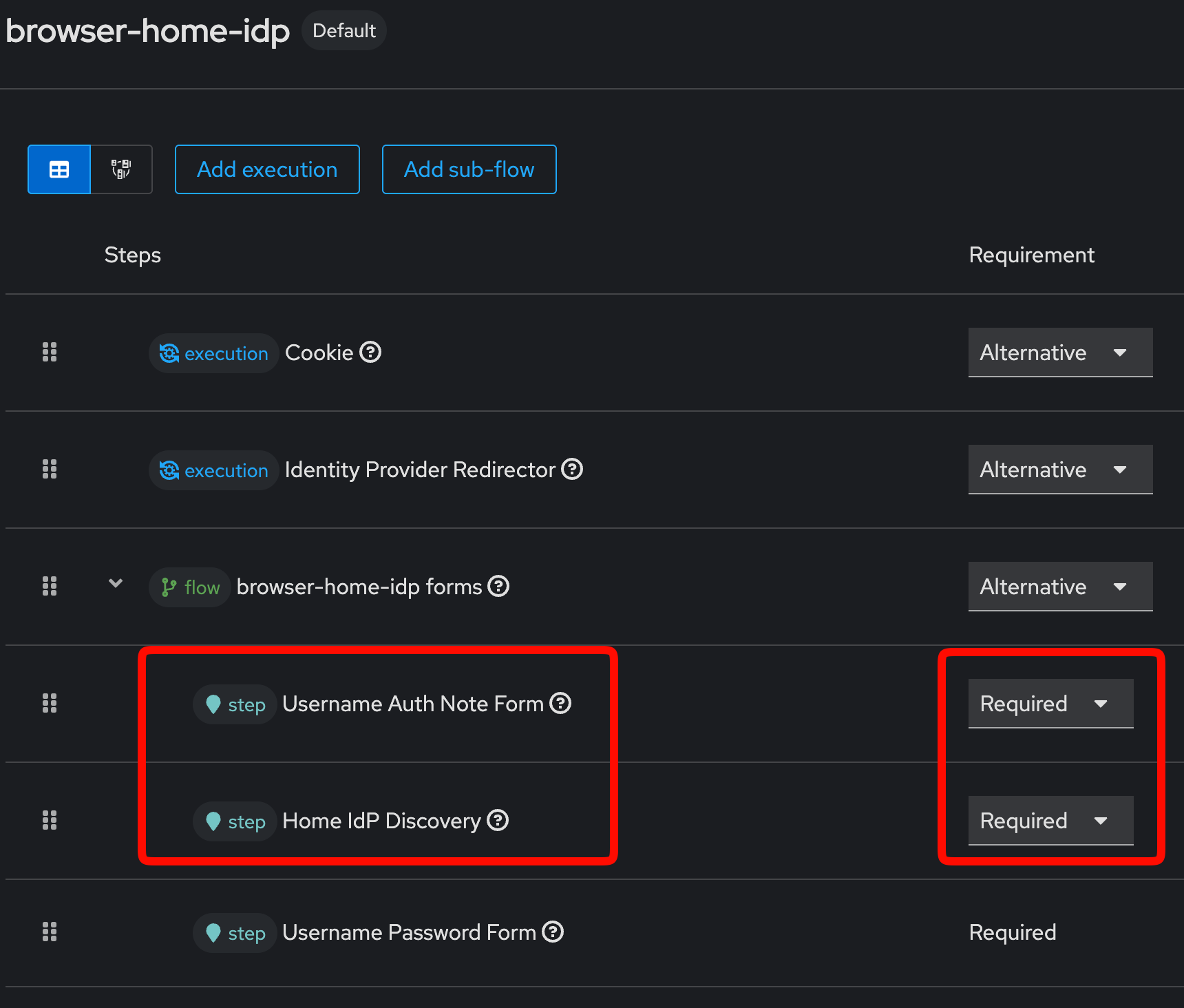
We will go through a basic setup for a flow, but you can customize this further by adding additional steps or conditions as needed (i.e. add a 2FA step). We will create something like this
-
In the admin UI, navigate to the Authentication section and select the Flows tab.
-
Duplicate the
browserflow and give it a name likebrowser with idp redirection. -
In the "forms" section, you can optionally remove the 2FA section. We will be adding two pieces to this form. For the flows section, click the "+" button to add a new execution.
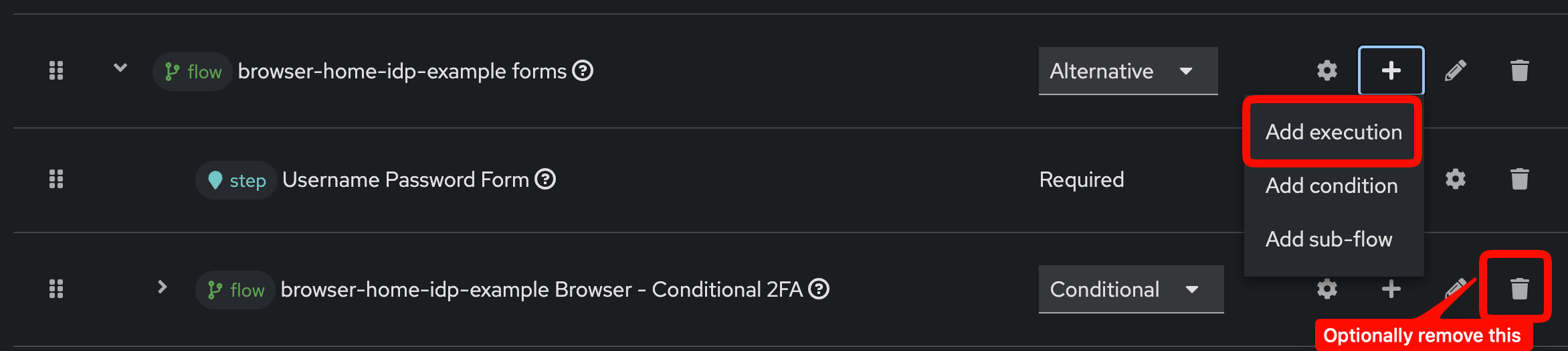 a. First, we will add the
 Username Auth Note Form. This presents users with an input to enter their email address. The value of this input is stored in an auth note calledusername. Mark the step as "Required" and place it before theUsername Password Formso that the email is captured before we attempt to authenticate the user.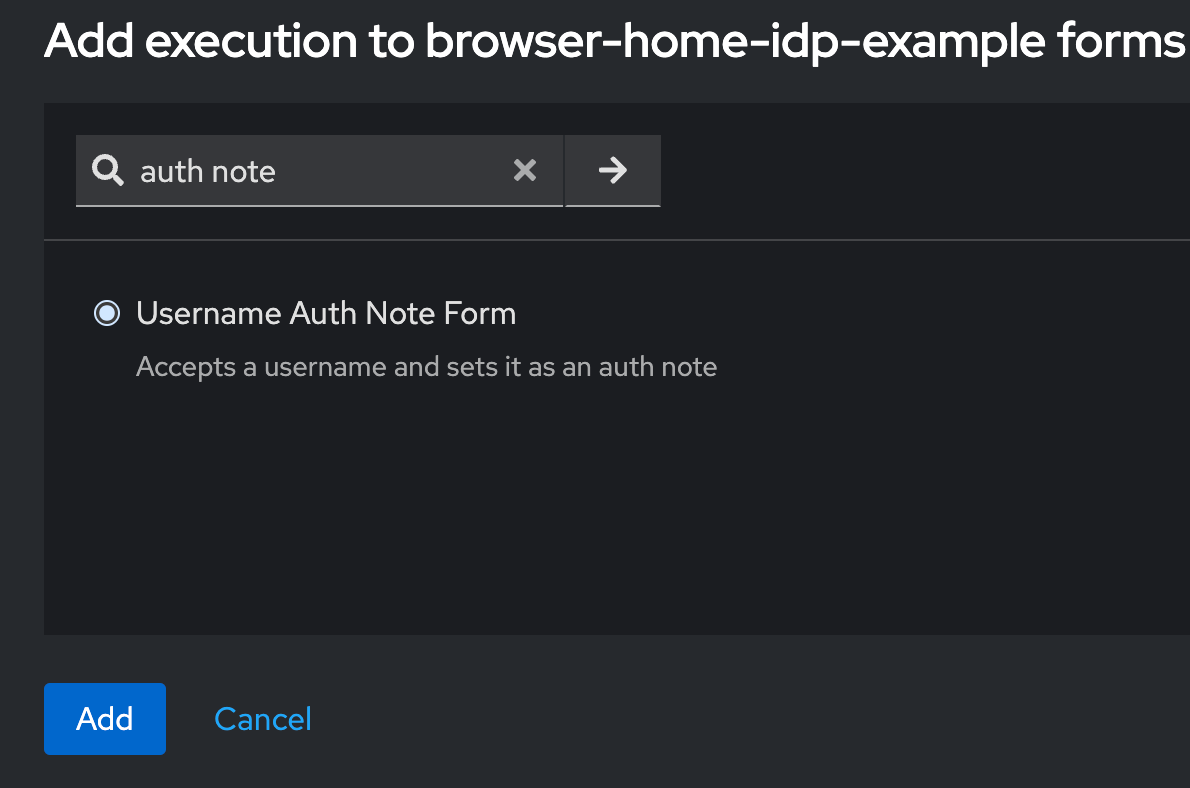
b. Next, we will add the
Home IdP Discoveryauthenticator. This looks at theusernameauth note, checks it against the verified domains of organizations, and if a match is found, it will redirect that user to the correct IdP for authentication. If no match is found, the user will continue through the flow (you can customize this further by adding an execution that shows an error if no match is found). Mark this step as "Required" and place it after theUsername Auth Note Form, but before "Username Password Form", so that it has access to the email address the user entered.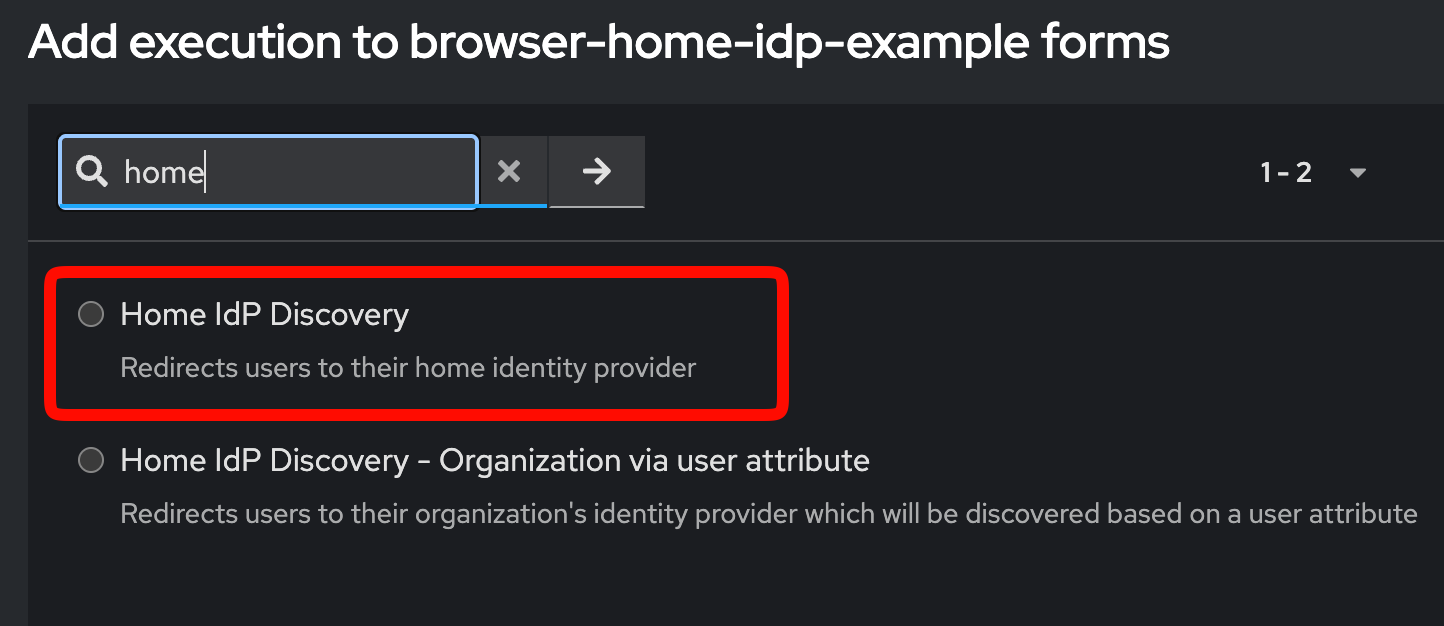
c. In this case, we will leave the
Username Password Formin place so that if no IdP match is found, users can still log in with a username and password. -
Once you have the flow set up, navigate to the Bindings tab and set the
Browser Flowto the new flow you just created.
You can now test this on any client you have configured, but an easy one is to open the "Account Console" in a new incognito window. Go to the Clients page to find this.
The home IdP discovery can be configured further by clicking the gear icon to bring up the step.
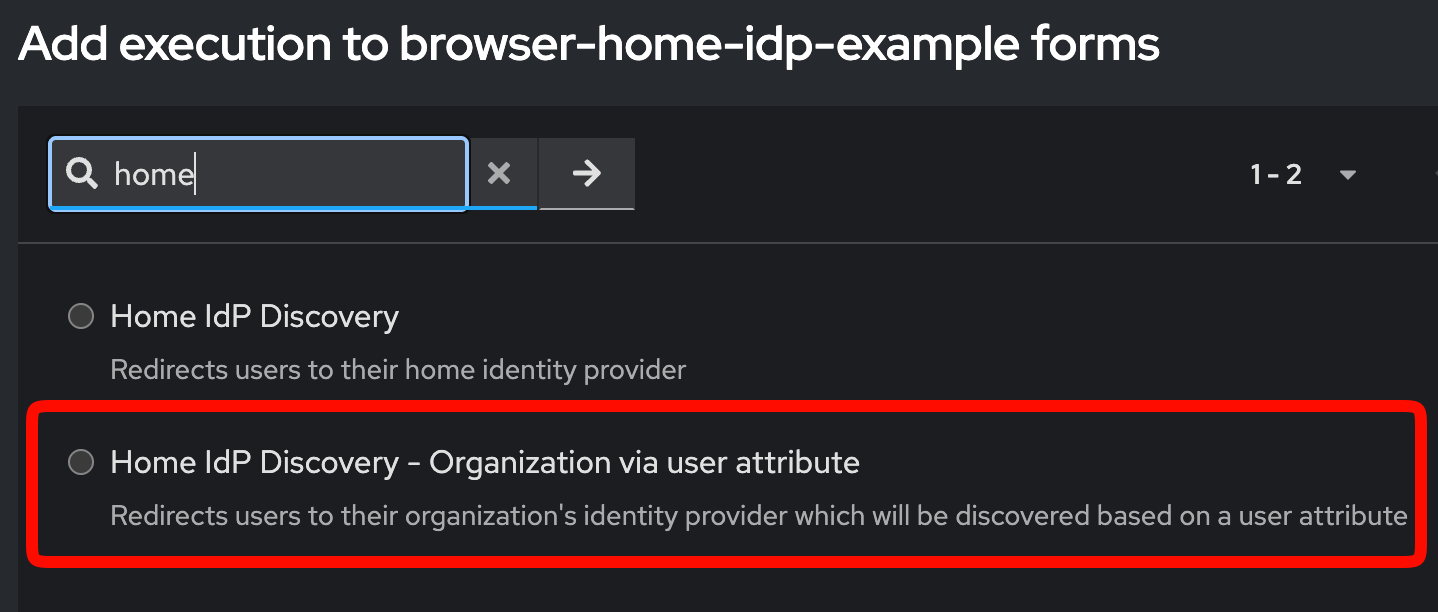
For a further step, it's also possible to use the home IdP discovery step to look at a user attribute. This is used in the active organizaton guide to set the active organization for a user when they have multiple organization memberships. In that case, the authenticator looks at a user attribute called active_organization instead of the email domain to determine the correct IdP to redirect to.
Domain-based routing and idpHint
There are two common ways to send users to the correct identity provider:
- Domain-based discovery: the user enters an email address and the login flow redirects them based on the organization's verified domains
- Explicit redirect: your application passes an
idpHintvalue when you already know which provider alias should be used
If you do not pass an idpHint, the login flow can fall back to domain-based discovery. If you do know the correct provider alias up front, sending idpHint is the most direct option. For an application-driven flow, see SSO Without Auth.