One-time Passwords
A one-time password (OTP) is an automatically generated numeric or alphanumeric code that authenticates a user for a single login. An OTP is more secure than a static password, especially a user-created password, which can be weak or reused across multiple accounts.
Phase Two supports two kinds of OTP:
- Authenticator apps (TOTP), such as Google Authenticator, Microsoft Authenticator, and FreeOTP. This is built into Keycloak.
- Email OTP, where a 6-digit code is emailed to the user. This is provided by the keycloak-magic-link extension.
Keycloak has no built-in SMS sending. For codes sent by text message, we recommend an additional extension, described in SMS OTP. Please contact support for assistance.
Authenticator apps
Configuring OTP
The default browser flow already contains a conditional OTP step, which asks for a code from users who have set up an authenticator app. To make users set one up, use a required action.
Required action
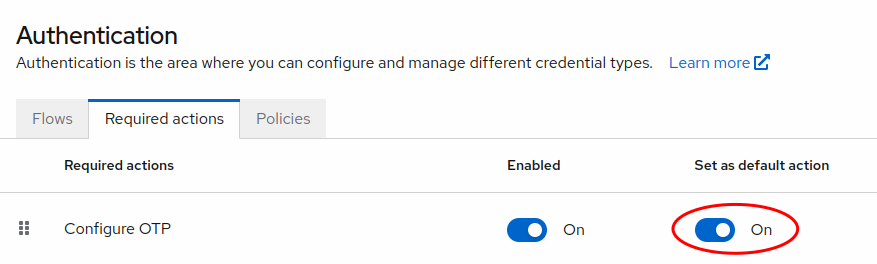
To force users to configure OTP, go to the Required actions tab of the Authentication section and turn on both Enabled and Set as default action for Configure OTP. New users must then set up an OTP app as part of registration.
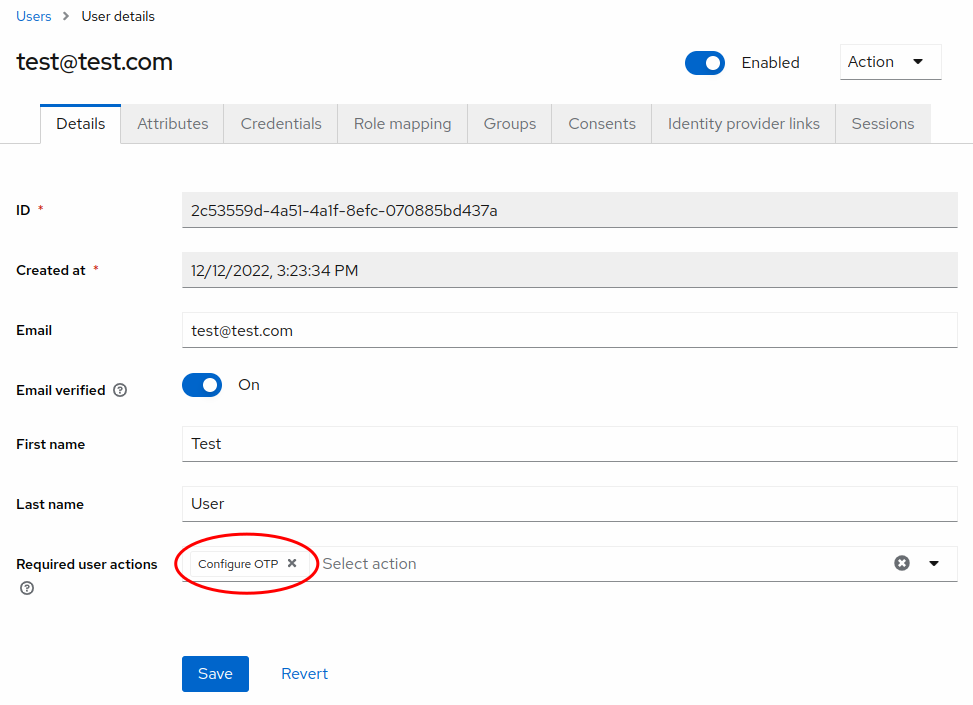
The default action only applies to new users. For existing users, go to the Users section, select the user, and add Configure OTP to their Required user actions.
To require OTP for every user, including existing ones, without editing each user, change the flow itself so the OTP step is required. See Set Up TOTP Multi-Factor Authentication for the flow changes and what to watch out for.
Login UI
After you set the required action, nothing changes until the user has passed the username and password step. Then the user is shown a QR code and instructions for setting up their authenticator app.
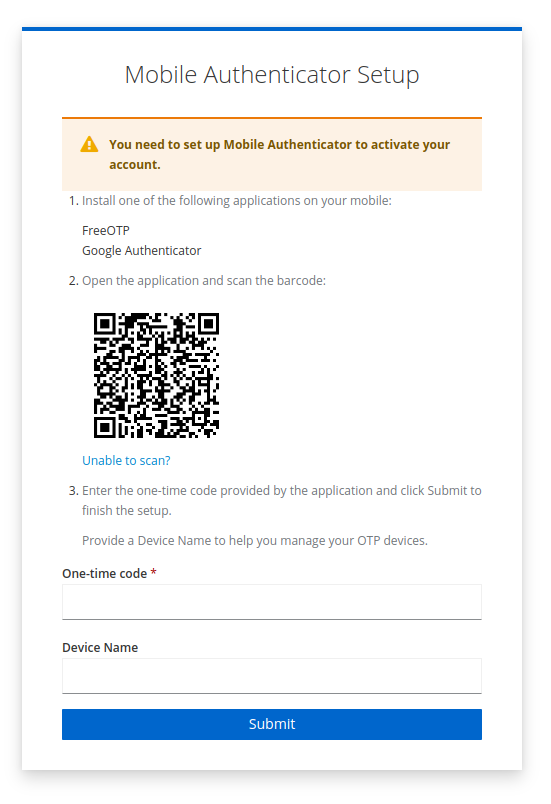
On later logins, users are asked for the code from their app.

Email OTP
Email OTP sends a 6-digit code to the user's email address, which they type into the login page. It can be used on its own as a password-less login, or after the password as a second factor. Email must be configured first.
Create an email OTP flow
- In Authentication > Flows, duplicate the
browserflow and give it a name, such asbrowser with email otp. - In the forms sub-flow:
- For password-less login, replace the Username Password Form with a Username Form, followed by an Email OTP step set to Required.
- For email OTP as a second factor, keep the Username Password Form, and add an Email OTP step after it, set to Required.
- Optionally configure the Email OTP step with the gear icon. Force create user creates a user when an unknown email is entered, and Email subject with code puts the code in the email subject line.
- In the Action menu, select Bind flow and choose Browser flow.
Email OTP is weaker than an authenticator app or a passkey as a second factor, because anyone with access to the user's mailbox can complete it. For flows that combine several methods, see Complex Flows and Custom authentication flows.
SMS OTP
SMS OTP sends a code to the user's mobile phone as a second factor. Keycloak doesn't include it, so we recommend the open source SMS authenticator from netzbegruenung/keycloak-mfa-plugins. It isn't part of the Phase Two image. On a managed cluster, contact support for help adding it to your cluster. If you self-host, download the sms-authenticator jar for your Keycloak version from the project's releases and add it to the providers directory.
The extension doesn't send messages itself. It makes an HTTP POST to your SMS provider's API, so you need an account with a provider such as Twilio, Vonage, or AWS SNS behind an HTTP endpoint, and you configure the request shape (URL, authentication, and the names of the message and phone-number fields) to match that provider's API.
Configuring SMS OTP
- In Authentication > Required actions, enable Phone Validation and Update Mobile Number.
- In Authentication > Flows, duplicate the
browserflow. In the conditional OTP sub-flow, add an SMS Authentication (2FA) step next to the OTP Form and set both to Alternative. - Configure the SMS Authentication (2FA) step with the gear icon. Name the configuration alias
sms-2fa: the extension uses the execution with that alias to send the confirmation code when a user registers a new phone number. Then enter your provider's API URL, credentials, and field names. The full list of options is in the extension's README. - In the Action menu, select Bind flow and choose Browser flow.
Users set up SMS by entering and confirming their phone number in the account console. To require it, turn on Force 2FA in the step's configuration: users who have no other second factor must then set up SMS at their next login.
Custom login themes
The extension adds its own login pages: login-sms.ftl for entering the code, mobile_number_form.ftl for entering a phone number, and select-country.ftl for choosing the country code. A theme that extends the default keycloak or phasetwo login theme renders them without changes. If your login theme replaces every page, for example a Keycloakify theme, you need to add these three pages to it. Use the extension's templates as the reference for the fields each form must post.
Security considerations
SMS is the weakest second factor Phase Two can offer. Codes can be intercepted through SIM swapping or phone-number porting, and like any typed code they don't stop a phishing proxy. Prefer an authenticator app or a passkey where your users can use one.
If you need help choosing or setting up a second factor, contact support.
SMS also costs money per message, which makes the phone-number and resend steps a target for SMS pumping, where an attacker triggers messages to premium-rate numbers. Protect the login with rate limiting and a CAPTCHA such as Turnstile, and set spend limits and country restrictions with your SMS provider.